Wednesday, 6 December 2023

HP Spectre Fold - Not Just Something New. Something Good

Ah, the trials and tribulations of the early adopter.

In our rush to be among the first users of any technology, how many times have we paid the price? And I mean the literal price; paying an exorbitant fee for relatively untested - sometimes even experimental - technology that always promises so much and yet often falls well short.

I was wearing a smartwatch before anyone else was. Oh, how they laughed. And rightfully so. It was enormous, had terrible battery life and could hardly do anything. But you could take pictures from a tiny camera embedded in the actual wristband. Awful, awful pictures of unusable quality. But still...

I was charging my phone wirelessly before anyone else. This meant I had to buy a separate accessory I then had to install inside the phone. Totally worth it.

As an early adopter I was one of the only people I knew to use a Windows phone. I'm still only one of the only people I know to use a Windows phone. Ever.

And yet, as a tech addict, I keep going back for more - these days trying out groundbreaking tech on your behalf so you don't have pay to be a new-device guinea pig.

It's not all bad news though. Every now and again, something truly innovative comes along that actually works. When that happens, it's a good day.


There's no question the HP Spectre Fold offers something new in the world of personal computing. In fact, it offers many things - all in one package.

I was expecting something pretty high-end - that's what the HP Spectre series is usually about; good, high-speed storage and RAM options, the latest Intel processors and original design choices adding up to an eyecatching laptop that really performs.

The Spectre Fold goes quite a bit further. That's because it isn't just a laptop at all. It's also a tablet. A touchscreen display and an all-in-one desktop PC. Oh... and some other kind of weird thing I don't really have a name for but is essentially a laptop-and-a-half - with extra screen above the keyboard for when one great screen isn't quite enough.

So, by my count, that's about five things. Which is just as well, because like so much other breakthrough tech, it's extremely expensive. The Spectre Fold may be five things at once - but it costs about five times more than any of those things by themselves.

I've done a useless job of explaining exactly what the Spectre Fold is. Imagine a very slim, 17-inch display, that can fold in half. Now slide a small keyboard and trackpad in between the two halves of that folded screen. Physically, that's essentially what you're dealing with.

Again, that doesn't quite describe it.

How about a laptop with a 12.3-inch display? Then, while you're using it, you can slide the keyboard towards you to reveal another, smaller screen underneath. This might be useful for on-screen media controls. Or perhaps a file directory where you have content stored for the project or presentation you're preparing on the main screen.

Then, you can remove the keyboard completely to reveal a whole other 12.3-inch display which is really just the other half of a massive 17-inch screen which can be folded flat to be used as a tablet. It's an OLED IMAX-enhanced touch display, so not only does it look sensational but you can use a stylus for drawing, painting and writing - that stylus is included in the box.

There's also a very subtle kickstand at the back of this "tablet" that folds out so you can use this standalone monitor to display video or perhaps for gaming, with a controller attached.

The now unattached keyboard and trackpad still works, by the way. That means this stunning, foldable, 17-inch monitor is now also the most portable desktop PC I've ever come across.

Is any of this starting to make sense yet?

All of these things seem like a good idea and the concept of a 17-inch screen you can fold away into your briefcase, satchel or purse seems very futuristic and convenient. But surely it doesn't really work properly? Surely a concept as crazy as this is just that; a mere concept. It couldn't possibly be a working, practical computing tool for both business and personal use, could it? 

For that to be the case it would have to have the latest Intel Core i7 CPU - which it does - good battery life - which it also does - and that screen would have to work even better than the folding displays we've seen on the few folding phones that have come along so far.

You guessed it. It does. Well... very nearly. As a viewing experience, I can't fault the display on the Spectre Fold. It's very bright, it's not particularly prone to reflection and the crease in the middle is practically invisible when viewed from front on. In fact, it might be the flattest, most subtle crease on any folding display I've used to date.

The department that seems a bit sub-par is touch response. I find I often have to touch on-screen controls several times to get them to work and while it's refreshing to have a stylus included in the box, it's certainly not the natural, intuitive writing and drawing experience I've encountered with other styluses I've used over the last year or so.

I may have also slightly oversold the Spectre Fold's gaming abilities. There's no dedicated graphics module here - not quite sure where you'd put it anyway. I'm still trying to figure out how HP managed to fit what they did into something so slim. Instead, you get the integrated Intel Iris Xe graphics solution - which will still run good games like Asphalt 9 and High On Life but when I tried to play new release blockbuster, Starfield, it would install but not load.

This is a shame because the concept of a truly mobile, bright, zippy 17-inch monitor is quite a different and appealing way to game - especially when travelling.

But those are really the major limitations to this device. It has 16GB of RAM and a healthy 1TB of PCIe NVMe M.2 internal storage. This means running apps like my preferred audio editor, Adobe Audition was an absolute breeze. The Spectre Fold comes with Intel Unison pre-installed - this is one of the latest crop of apps for pairing your phone with your computer - something Apple devices do automatically of course. Intel Unison is easily the best effort at this functionality I've tried to date - it works for both Android and iOS handsets and not only lets you browse your phone's photo and file storage for easy transfers but also shows your phone notifications on-screen and let's you take calls through the computer.

Microsoft's new Copilot tool has also proved itself to be quite useful; this is an A.I.-powered virtual assistant that picks up where Clippy, Cortana and Bing Chat left off - ask it anything. Not only does it have the full power of all the knowledge of the internet behind it but it's now deeply integrated with Microsoft's Office 365 suite of apps. It's not intrusive, just helpful when you're trying to do something more efficiently.

Which is kind of the philosophy behind this whole device. I've been quite taken aback by how well engineered and durable the Spectre Fold is. I was expecting to have to handle this almost-$10K foldable with kid gloves, but I've found the opposite to be true. Fold it, unfold it, whack the keyboard on and off, pop the stand out - there's nothing fragile here at all.

Yes, you read that right; to be at the bleeding edge of premium computing technology you'll need to fork out at least NZ$9,770.58 - at least you get a helpful USB-C hub in the box, with two USB-A ports, an HDMI slot for a second screen and another USB-C for power delivery.

This is on top of the two built-in Thunderbolt 4 USB-C ports, Wi-Fi 6E and Bluetooth 5.3 connectivity.

As I already mentioned, battery life is really good - especially considering how compact the whole device is. Both keyboard and stylus charge wirelessly when stored magnetically in place, or there's an external charging dongle for the keyboard if you're using the device in "Desktop Mode" for an extended period.

The Spectre Fold is a very tidy little laptop - the 5MP Windows Hello camera provides fast and reliable face unlock and high-quality video, combined with top-notch mic performance. However, you can't really use this camera in desktop mode, as it ends up way over on the left-hand side and shoots in the wrong aspect. Not sure what the solution for this issue would be... a second camera on the top edge somewhere near the fold maybe?

It's not a major as it takes about seven seconds to transform the Fold from a desktop back into a laptop. I can't say I've made a lot of use of the "Expanded Screen" mode - where you slide the keyboard out to create an extra "screenlet" just above it - but I'm sure there's someone out there who's saying, "That's exactly what I need!"

As a tablet, you'd be hard pressed to find one this big (17-inches) this powerful (i7 processor) and this versatile (Windows 11).

And as a standalone display, what a great way to watch Fargo or Beacon 23 in your bedroom. The Bang & Olufsen quad speaker array sounds almost as good as the screen looks.

This is not a Jack of all trades, master of none - it pretty much masters every mode you want to use it in. It's surprisingly sturdy and delivers in almost every area of modern computing requirements except perhaps very high-end gaming and video production. But still.... it can't really be worth ten grand... can it?...


Click here for more information and on the HP Spectre Fold.

Tuesday, 28 November 2023

Logitech Wave Keys and Logitech Lift - No Learning Curve Here

How many different devices do you use every day?

It's one of those questions that seems fairly innocuous at first but when you start to add them all up, they really, really add up. Phones, tablets, desktops, laptops - devices at home, devices at work, devices when you're on the road...

Anything that can simplify and streamline all this would surely be welcome.

As an insight to my personal situation, I use a crazy number of different computers at work, including my own laptop and several different PCs - some of which are connected to the same keyboard and mouse - otherwise my radio studio would be full of keyboards and mice and not much else.

When I get home, I use my laptop and desktop together and I'm often reviewing a third computer of some kind - or perhaps a tablet that works with a keyboard too...

See? It adds up.

What's more, some are MacOS, some are Windows - it's no wonder I often feel confused and tired by the end of the day. Thanks to Logitech, I can now add a couple more devices but remove several others, giving my hands, wrists and fingers a break at the same time.


When it comes to computer accessories, there aren't too many names more trusted than Logitech. We're talking years of quality, well designed, innovative products that many people have come to rely on - both at work and at home (and now that's often the same place, obviously).

Logitech has established a reputation for ergonomic design too. For those of us (and these days it's most of us) who spend hours at a time tapping at a keyboard and manoeuvring a mouse, the growing demand for a more natural fit is hardly surprising and it's no wonder we've seen the development of more non-traditional input devices; split keyboards, trackballs and vertical mice are now commonplace in most businesses.

While these ergonomic form-factors are clearly a good idea, they can also seem a bit daunting and alien. The standard shape for a keyboard and mouse has been around for a very long time. Old habits die hard and learning a whole new way to type or control your cursor is a bridge too far for some.

That's why the team at the Logi Ergo Lab has come up with the Wave Keys ergonomic keyboard and the Lift vertical mouse.

Starting with Wave Keys, it looked like a fantastic idea to me as soon as I took it out of the box. Before I even used it, I could tell the combination of the contoured (wavy) keyboard and the cushioned palm rest would guarantee a significantly more comfortable typing experience.

I was also surprised to discover the Wave Keys wasn't that big - yes, because of the attached palm rest, it's longer top-to-bottom than other standard keyboards but it's actually not as wide as the one I've just been using. This is because the keys are in fact closer together and smaller than those on a "traditional" keyboard - even the number pad is more compact.

That doesn't mean you feel at all cramped when using the Wave Keys though - quite the opposite. It's a hard thing to explain, but because the keys are all curved towards where your fingers naturally land, Logitech has been able to reduce the upper surface of each key while keeping the space between them generously wide. This not only means more comfortable typing but it's faster too, because your fingers don't have to stretch as far for keys like B, Z and P - and other keys that aren't directly adjacent to the home keys we've all become used to over years and decades.

Best of all, unlike a split keyboard configuration, there's no issue learning how to use this one. In fact, the only thing that slowed me down initially was I couldn't quite believe how easily I had adjusted to this new device and I kept second-guessing myself, even though my typing had actually improved, not gotten worse.

My experience with the Lift vertical mouse was similarly instinctive - if not more so. The Lift is essentially a standard mouse propped up on its side at a 57° angle. At the Logi Ergo Lab, they call this the "natural handshake position" - who would have guessed? Try it right now, even if you don't have a mouse handy - just rest your hand and forearm naturally on the table or desk in front of you. See how your hand sits on its side? To use a "normal" mouse, you literally have to twist your arm over more and even raise your elbow up and out to get your hand in the correct position.

This is what ergonomics is all about, of course; bringing the device to your body rather than the other way around. Just as with the Wave Keys, using the Lift felt completely normal, right from the start. The two main buttons and scroll wheel weren't anywhere different - just on an angle. The only real change was a big improvement - the forward and back keys have been moved around to the opposite side, just above the thumb rest, making them far more accessible and easier to use. On a standard design, this would have placed them underneath the mouse itself, no use there at all.

Both Ergo mouse and keyboard can be paired with up to three devices, swapping instantly between them with the push of a button. This means you can literally use the same mouse and keyboard for three different computers. They each include a Logi Bolt USB receiver as an alternative to connecting via bluetooth and this can be stored neatly away in the battery compartments.

What's more, if you sign into the Logi Options+ app on each computer you're using, you won't even need to manually select which device you're controlling - there's a Flow option for the Lift mouse that lets you push the cursor from device to device. Logi Options+ also gives you the capability to customise buttons on both keyboard and mouse. You can even set different keys to do different things in different apps - although I find that can get a bit confusing when you're swapping around.

Perhaps the most exciting feature of Logi Options+ is Smart Actions - these are essentially programmable macros you can fire off with any key or button you designate. Do you have seven different apps you always have to open individually at the beginning of every work day? You can create a Smart Action that will do all that at the touch of a button.

Like every Logitech device I've come across in the past, both the Wave Keys and Lift seem very well made, durable and the Lift in particular has a nice, soft-touch, grippy surface to it.

The only thing that raised an eyebrow for me is how they're powered; with a battery. Or in the case of the Wave Keys, two batteries. I kind of thought single-life batteries were on the way out. Most wireless devices I use these days charge via USB-C - including other Logitech accessories I use regularly. Thanks to environmentally friendly packaging and the use of recycled materials, the Ergo range is carbon neutral - and yet these two run on batteries that will eventually die and be thrown out. A puzzling juxtaposition.

There is a payoff though - up to two years' use on a single battery for the Lift and a crazy three years for the Wave Keys. I can't argue - that's definitely more convenient than having to recharge each device every week or two.

In many ways, these two devices are two of the most straightforward I've reviewed all year and yet I've already written more than 1300 words about them. I love them. When design gets this good, what's not to love? Sure, using the app adds a host of other tricky little features but the fact Logitech has managed to take something as fundamental as the keyboard and mouse and tweak it like this is... well, it's art really.


Click here for more information and pricing on the Logitech Wave Keys.


Click here for more information and pricing on the Logitech Lift.

Thursday, 23 November 2023

Microsoft Surface Laptop Studio 2 - Fast, Flexible and Hot, Hot, Hot

The beast is back.

Microsoft seems to have mastered the art of turning Windows laptops into tablets and back again, with a range of Surface devices to suit most budgets and work requirements.

But when it comes to one laptop to rule them all, if you have the funds, there's really only one option.


The Surface Laptop Studio 2 doesn't look a whole lot different from its predecessor. It's still big, still heavy and still one of the most useful and powerful laptops I've ever come across.

If you're not familiar with this unique form factor, not only can you use it as a laptop, you can pull the screen forward, over the keyboard and magnetise it in place to play video or for gaming, using an external controller. Or thirdly, you can fold the screen down virtually flat, concealing both keyboard and touchpad entirely to use the device as a tablet. An incredibly grunty tablet.

And yes, there have been some upgrades.

For the last few years I've been rather critical of most laptops for their lack of ports - it's really limiting to only have one or two USB-C slots, especially if you're using one of those for charging purposes. So I was quite pleased to see the Laptop Studio 2 had added a microSD card reader and a USB-A 3.1 port. This seems to be a recent trend - bringing back USB-A. A big reason for this is probably due to most wireless mice relying on a USB-A dongle (if not Bluetooth). Despite the Laptop Studio 2's fabulous haptic touchpad, a physical mouse is still likely to be the first accessory most people add to the mix, so it's great not to have to rely on yet another adapter or external hub to plug one in.

It's not all good news though.

By far the biggest downfall of the Laptop Studio 2's design is how it handles heat. It really doesn't. While its unusual inset, elevated base features large vents for cooling down either side, they simply aren't enough. Once the device is put under any amount of stress - when playing comedy first-person-shooter "High On Life" for example - the fans kick in like you wouldn't believe and even they can't prevent the whole laptop from heating up. And I don't just mean warm. This is without doubt the hottest I've ever felt a computer get. Weirdly, it seems to keep functioning perfectly - brilliantly, even. But it literally gets too hot to leave on your lap.

What's really frustrating about this is the fan noise and overheating were issues with the original Laptop Studio - if anything, they're now even worse.

Another major - and lingering- issue is battery life, or lack thereof. Most of the other laptops I've reviewed this year have impressed me with good battery performance and many have actually blown me away. In previous reviews, I've already suggested that 2023 was really the year Windows laptops could finally claim all-day battery life - thanks to a combination of improved battery tech but more significantly, more efficient CPU and GPU performance.

Sadly, this trend has not carried through to the Surface Laptop Studio 2. While it's tricky to be precise when it comes to measuring battery life in real-world usage, my feeling is there hasn't been much improvement from the original model... which was bad. Given the gale force breeze the fans are blowing out a lot of the time and the incredible amount of heat being generated, this isn't surprising, just disappointing.

At least the Laptop Studio 2 charges quickly - as long as you use the supplied 127W brick which still attaches via that weird, magnetic, Microsoft-only Surface Connect cable. Alternatively, you can charge via one of the USB-C USB4 Thunderbolt 4 ports - although charging this way is significantly slower. In fact, while gaming, I was using a GaN charger capable of up to 140W, yet the laptop drained the battery faster than the USB-C charger could top it up and it still went flat. Quite quickly.

But... just as with the original Laptop Studio, I don't really care. That's because this is a computing device that cuts through any task like a hot knife (or laptop) through butter. I've mentioned gaming a few times - and while that's not really what this computer is designed for, between the 13th Gen Intel Core i7 processor and the NVIDIA GeForce RTX 4060 GPU my review model was tricked out with, I couldn't find a game that didn't work fantastically well on it. The 14.4-inch PixelSense Flow Display is super bright and colourful and I didn't seem to have the reflection issues on this model that I encountered with the first generation.

The Dolby Atmos Quad Omnisonic speakers do a fabulous job of throwing 3D audio around and the whole audio/visual package makes for a superb entertainment experience - gaming, streaming... whatever.

But if you're forking out almost NZ$6,000.00 for a machine like this (it starts at NZ$3,752.00, but my review device was equipped with maximum RAM, storage and GPU) you need to know it's going to do the job - whatever business you're in. No problem there; this has got to be a creative's dream device - a responsive, accurate touch-screen you can fold down to use as a tablet - or add the Surface Slim Pen 2 for more artistic control. It will run whatever audio and video editing tools you need without a stutter and when it comes to multi-tasking, the tall 3:2 aspect ratio means plenty of screen space for plenty of windows.

Speaking of Windows, Microsoft has introduced some major A.I.-powered innovations software-wise this year and obviously this is a perfect device to make the most of that well-publicised Copilot integration into tools like Outlook, Edge and other Office 365 apps.

Even the camera has been upgraded with some useful tweaks for those crucial online meetings or live streams. Automatic Framing puts you front and centre, Eye Contact keeps you looking directly into the lens - even when you aren't and Background Effects provides some professional blur to whatever might be distracting viewers who are looking behind you.

The first Laptop Studio was an unstoppable juggernaut - a sturdy, polished piece of transformable tech design, capable of adjusting itself to fit any work environment and meet any computing demands. By adding extra ports, more processing power and a GPU upgrade, the new generation is an even bigger triumph. Let's just hope next time Microsoft figures out a way to cool things down and run the battery a little longer.


Click here for more information and pricing on the Microsoft Surface Laptop Studio 2.

Tuesday, 21 November 2023

Hisense 75U7KNZ - Welcome to the Country!

It's always exciting when a brand I've been reading about for a while finally makes its way to New Zealand. Ironically, given you're reading this right now, it really isn't until you try something yourself that you can really judge how good it is, no matter how many trusted reviews you read.

In saying that, I wouldn't have been so keen to try my first Hisense TV if I hadn't been so impressed by everything I'd read about them.

Suddenly here was an electronics brand I'd barely heard of more than a year or so ago, seemingly producing very classy TVs, using some of the latest display technology available and selling them at a highly competitive price.

Too good to be true? I had to find out.


Before we even get into the details of how good the Hisense 75U7KNZ is, I really have to start with the price; as I write this article, heading into the Black Friday sales, I've seen this TV on sale for as little as NZ$2791.00 - which seems insanely low for a 75-inch 4K TV of any quality, let alone one I quickly discovered, punches well above its weight.

As I removed the 75U7KNZ from its box (always a fun challenge with a giant telly like this) I quickly discovered this was a solidly constructed TV - still slim but in no way flimsy. I felt no anxiety about tipping it over on its back to install the two feet included in the box, as per the instructions - there was no flex or worrying creaking as I laid it down and lifted it back up, onto my entertainment unit. Each foot has a cable-tidying bracket attached to keep things organised once you've plugged everything in.

Speaking of which... I found it a little strange to find two different I/O consoles at the left side of the rear panel - one facing more conveniently to the outer edge of the TV with the 4 x HDMI ports, USB-A socket, antennae connections and AV in/out sockets.

Meanwhile on a separate, less accessible console right around the back, you'll find the options to connect an ethernet LAN cable, an optical line-out and another USB-A port (perhaps for powering an external dongle).

This second set of ports was virtually impossible to reach once I had the TV set up and I really wished I'd plugged in the LAN cable before I started testing - but I wanted to try out the Wi-Fi capabilities first. (Turns out, I could have opted for a Wi-Fi connection with the ethernet cable plugged in anyway. Oh well.)

Setup was extremely easy - I opted to do so by downloading and using the VIDAA app on my phone, although you can do it all with the remote control instead. The app just makes things a bit more efficient when it comes to typing email addresses and passwords.

I was fascinated to try VIDAA U7 - the operating system Hisense uses in this region - as I'd never come across it before. It certainly has both strengths and weaknesses; as I just pointed out, getting the TV up and running was a surprisingly fast process and adding accessories like a soundbar and 3rd-party streaming devices was effortless.

However, I've never come across a TV with so much pre-installed bloatware before, none of which can be uninstalled. On one hand, it was pleasing to see apps like Plex, Disney+, YouTube, Netflix and Prime Video already waiting to go - complete with their own shortcut buttons on the remote control. On the other hand, I was confronted with app after app after app I would never have installed voluntarily - most of which I'd never even heard of - many featuring endless libraries of foreign language content I have no interest in consuming.

When it came to local content, it was also a good news / bad news story. Freeview, Neon and Sky Sport Now were pre-installed but on-demand apps TVNZ+ and ThreeNow were nowhere to be found - even on VIDAA's somewhat limited app store. Not to worry - I've been assured by Hisense's people those missing NZ apps are on the way and should be available early 2024.

In the meantime, it's easy enough to cast or AirPlay from your phone or tablet.

So at the end of the day, the VIDAA home screen is a bit of a mess - you can customise the order in which the apps appear but that's about it. You can't even remove the apps you don't want from the home screen and there are endless rows of viewing recommendations that are pretty much meaningless if you're not using the apps they're trying to direct you to.

So that was all a bit disappointing.

But, from that point on the story gets a lot better.

One thing I really love about VIDAA U7 is how easy it is to get to the settings menu you want. The remote is quite oversized but that's because there are heaps of shortcut buttons and a full number pad. Other than the app shortcuts I've already mentioned perhaps the most useful is the settings button, which will bring up an abbreviated menu on the left-hand side of the screen while you keep watching whatever you're watching.

This means making adjustments to sound and picture can happen both quickly and unobtrusively - much more so than with most other TVs I've used in the past.

You can set the 75U7KNZ to automatically detect what content is playing and adjust picture and sound accordingly, or you can make those tweaks yourself. The auto setting was pretty damn clever, even picking up Filmmaker mode which looks pretty great on a display of this size.

Who am I kidding? Everything looks pretty great on this screen. Personally, I like to use the Dynamic option which enhances brightness, colour and contrast - all of which the 75U7KNZ provides in spades. If you're looking for a ULED Mini-LED display for daytime viewing in a sunny room, this is easily one of the best I've come across.

Technically, this is achieved by grouping the thousands and thousands of Mini-LEDs into hundreds of dimming zones, but who cares about any of that? The result is a crisp, ultra-clear picture that really pops in almost any lighting conditions.

Plug in a PC or gaming console and the 144Hz Game Mode PRO will kick in to provide an even smoother, low-latency experience. This TV is a lot of fun.

The Dolby Atmos sound solution stacks nicely, with good left, right and height separation and decent bass response for built-in TV speakers. Don't get me wrong, I still ended up connecting my own soundbar, woofer and surround speakers but the default sound system still made for a perfectly watchable, home-theatre experience.

I was surprised to encounter a few ghosting effects when watching action sequences and sports - but swapping from Dynamic to Sports Mode took care of this straight away and as we've established, that's only a couple of button presses away.

The only thing to dampen my energetic enthusiasm for this new, Hisense viewing experience was a bit of buffering - especially when using Plex, which is how I view locally stored content on my home server.

At first, I thought this might be a Wi-Fi problem - the 75U7KNZ is not Wi-Fi 6 enabled so is more vulnerable to interference and overcrowding on a home network. Unfortunately, when I eventually managed to get that damn ethernet cable connected around the back, it made no difference. I then realised this issue was probably due to the larger size of the video files I was trying to play from my local server - sadly, the quad-core Hi-View Engine processor seems to struggle here - and with some higher-definition streaming content as well.

Luckily, I have one or two 3rd-party streaming devices I can plug in to play this stuff and the result still looks absolutely fantastic on that big, bright and beautiful 75U7KNZ screen.

The more I use this TV, the more I love it. I can't believe this level of colour, contrast and brightness - let alone the sheer size of the screen - can be purchased right now for well under NZ$3000. If this is a taste of what Hisense has to offer, I can't wait to see what's next.


Click here for more information on the Hisense 75U7KNZ.

Thursday, 16 November 2023

One NZ OneNumber - Take Your Watch, Leave Your Phone

By now there can be no doubt the smartwatch has well and truly come of age.

These days you don't have to be some kind of tech geek to wear one - in fact, not only are smartwatches now a routine way to keep up to date with your notifications, calls and messages but they're also considered a genuine fashion accessory, with an ever increasing choice of styles, colours and bands.

And yet, even if you have joined the wrist-wearable club, it's possible - even probable - that you're not making the most of this wonder of modern technology.

Sure, you're probably tracking your exercise and you have it paired with your phone to get all your notifications vibrating subtly on your wrist - perhaps you're even taking advantage of some of the more specific features like controlling the media on playing on your handset or using your smartwatch as a remote for your phone's camera.

But have you considered ditching your phone altogether?

With the right phone and smartwatch combination, One NZ's OneNumber addon plan allows you to do just that.


For years we've seen movie characters like Dick Tracy and James Bond talking into their wrists, using their watches for all manner of crazy antics - from cutting open locks with lasers to literally shooting bad guys.

Smartwatches have come a long way and although perhaps they're still not capable of dispatching super-villains, there's not much else they can't do. The latest devices from both Apple and Samsung are particularly well-endowed with added extras. For example, you can download your favourite Spotify playlists, right onto your watch, listening to them through earbuds you've paired directly to it. Turn-by-turn navigation is another handy one - it's pretty useful getting a vibration on your wrist every time you need to turn a corner, especially if you're walking around a strange city.

The good news is, thanks to the OneNumber addon, you no longer need to have your phone with you for all those things to keep working. As long as you're on an eligible Pay Monthly plan, for just $5 a month you can connect your Apple Watch or Galaxy Watch directly to the One NZ network, just like your phone, using the same number.

Now I need to point out here; not all smartwatches are created equal and not all have the LTE capabilities required. However, if you already own a Samsung Galaxy Watch5 LTE or newer, or an Apple Watch (GPS + Cellular) going all the way back to the Series 4, you're probably in luck.

Just a warning though... I hope you don't have the issues setting it all up that I did.

The first crucial step is porting your number from a physical SIM card to an eSIM. The best way to do this is to take your SIM into a One NZ store and they'll sort you out on the spot. Being an entitled tech reviewer, I tried to circumvent this first crucial step and that might be why things went so wrong for me.

Activating the eSIM on my iPhone 15 Pro was no issue - I was sent the details and verification instructions from my One NZ contact and that all seemed to work as planned.

However, it's then supposed to be an equally easy process to add your watch to that eSIM once you've signed up for the One Number addon...


This persistently failed to work as promised so I asked One NZ's online chatbot, Hana, for help.

She/He/They were no help at all and couldn't seem to understand what I was talking about. Hana then offered to put me in touch with a "real" person who could.

They couldn't. I was encouraged to ring the One NZ helpline instead. This meant another round of account verifications and explaining my issue all over again, only to end up talking to someone (I'm guessing in the Philippines? Definitely not in New Zealand, anyway) who had no real technical skills and seemed to be part of the billing operation instead. Eventually, after enduring the inevitable and frustrating cultural divide one only experiences when forced to deal with foreign call centres, someone did actually manage to get the eSIM activated on both my phone and my Apple Watch Ultra 2.

Or so I thought.

Yes, I could now make and take calls independently of my phone. And yes I was also receiving all my usual notifications etc.

It wasn't until a few days later I realised I'd missed a few calls and suspiciously, none of the callers had left voice messages. On closer inspection, I then discovered this was because my voicemail wasn't working anymore. Not for me. Not for people calling me.

I asked Hana again. She was no help. Again. Reluctantly, I commenced an online chat with a supposed real person named Rotes. This was the result...


So yes, it was off to the Philippines (or wherever) again. Geraldine seemed keen to help. She assured me she'd sort everything out, even though it was a technical problem and she wasn't part of the technical team. So why was I put through to her? Who knows? The important thing is, Geraldine was going to find someone to fix it and she'd get back to me shortly.

She didn't.

The next day I tried again and finally, my latest overseas call centre contact was able to get my voicemail up and running.

Now none of this has anything to do with what a great product One Number is (once it's working). For only $5 extra each month, your watch essentially becomes a phone on your wrist. The only thing it can't do is take pictures, although give it time, I'm sure that feature is moments away.

The freedom of being out and about, phone-free is an exhilarating sensation I can't recommend enough. It's possible my teething problems were because my devices were not purchased directly from One NZ. As their website warns...


It's also possible I was just too much of an early adopter. Perhaps by now, word of the One Number plan has filtered through to the crack squad in the Philippines(?) and they've now upskilled to be more helpful. Perhaps I'm just a crusty old racist and the call centre isn't in the Philippines at all - although at one point I did ask if I could talk to someone back in New Zealand and was told, "No. That isn't possible."

Ironic this company changed its name to One NZ. Oh well. I really do love using my watch as a phone and I'm sure if I'd just got off my bum and gone into an actual store everything would have been set up properly in the first place. Don't let my harrowing call centre tale put you off what is otherwise a fantastic (and very reasonably priced) service.


Click here for more information and pricing on One NZ OneNumber.

Wednesday, 15 November 2023

Huawei FreeBuds 5i - Don't Dismiss These Buds

I know what you're thinking...

"Why the hell would I bother reading yet another review about earbuds?"

I don't blame you. If I'm being completely honest, when Huawei first approached me to do this review, my first thought was, "Why the hell would I bother writing another review about earbuds?"

The obvious issue is the absolutely flooded market. I have unquestionably tried more models of earbuds than any other tech category - by a considerable margin. What's more, certain manufacturers - like Huawei - seem to have a "new" version every couple of months.

I've looked it up and in fact, this is completely unfair to Huawei. Technically, they don't do it bi-monthly. it just feels like they do.

Please don't ask me to explain the difference between the numbered models, the "Pro" models and the models with numbers that also have a lowercase "i" at the end. Because I don't understand how any of it works.

All I do know is I reluctantly agreed to review the latest FreeBuds. And I'm glad I did.


The Huawei FreeBuds 5i are an increasingly familiar form factor; I call it a hybrid fit - although they have the snug, sealed (available in three sizes of gel tips) bits you secure in your earholes, they also feature the external stems more usually associated with an "open" fit. I assume this design choice enhances mic performance and from what I've experienced, also adds extra stability to the fit.

This ties in nicely with the FreeBuds 5i's IP54 splash resistance rating. The secure fit and sweat resistance make them a great choice for exercise. If you're training out on the streets though, you might want to be careful with how much you crank up the ANC (Active Noise Cancellation). It's very effective - as it has been on most of the recent Huawei buds I've tested. Using the Huawei AI Life app, you can set the level of ANC to suit your environment - but where's the fun in that? I like it wound right up all the time and although it's easy enough to cycle through Off, Awareness and Noise-Cancelling modes with a long press on either bud, I love the isolation tuning the whole world out brings.

Huawei's AI Noise Cancellation is put to good work on the microphones too. Definitely no complaints about voice clarity from any of my callers so far.

The customisable touch controls on the FreeBuds 5i are the feature that pleases me the most. Other than the ANC, you can set double taps to answer and play/pause and use responsive swipes up and down for volume - or use the controls to skip, go back or wake your voice assistant. Often tap and swipe controls like these can be a bit finicky on earbuds - but not on these earbuds. They work very reliably indeed.

The AI Life app also offers a fit test to ensure you've selected the right ear tips, there's a basic EQ setting that lets you boost bass or treble and you can select the "Low Latency" toggle for better audio sync when gaming or watching video. This works in perfectly with the FreeBuds 5i's multi-point connectivity - you can connect two devices at once, so an incoming work call will take precedence over that all-important battle royale you're in the middle of.

As for the certified Hi-Res Audio? It's really, really good.

Fleetwood Mac's "Chains" has a whole new feeling to it. With the Freebuds 5i set to their default EQ, the acoustic guitar which is fingerpicked throughout the track has its own space, while the multi-layered vocals seem quite separate. I've never considered these classics to be so cleverly mixed, but it definitely comes through here.

Meanwhile, "Tin Man" by feeble little horse is both subtle and powerful simultaneously. The vocals are clean, clear and easily decipherable, while the dirty, distorted power chords of the guitars boom through in a gritty, effective way that keeps me listening till the end. These earbuds really do a great job of reproducing absolutely everything.

As for "A&W" by Lana Del Ray, if you haven't had a listen to this long, but rewarding sonic journey with some really good headphones or earbuds, do yourself a favour. There's a bit of bad language but wow, the aural trickery and dynamic range on this track are serious art. And the FreeBuds 5i capture it all.

It's not just music appreciation that really works; lately, I've been watching (and thoroughly enjoying) the new Prime Video series, "The Power." Without getting too far into the plot, what I can tell you is the audio mixing and soundtrack are absolutely first-class. I know this because I've been listening on the FreeBuds 5i and. yet again, I've been impressed by how they pick up every detail - left, right and all around. Usually watching video using earbuds is a necessity - something you do to avoid disturbing others around you. I've found with these FreeBuds it actually enhances the experience.

It's quite stunning to get this kind of sound quality for just NZ$179.00 - not to mention all the customisation options I mentioned earlier. The only thing preventing me from recommending these earbuds in the same league as the very best available is the lack of wireless charging - you can only charge the case via its USB-C connection. These days I consider earbuds to be up there with smartwatches when it comes to being the ideal gadget to charge wirelessly. With anything this small, it's a bit of a pain to have to fiddle about plugging in a charging cable - well for me anyway. If you don't charge any other devices wirelessly this probably won't be an issue for you.

And the case certainly is small - its streamlined, pebble-like shape makes it wonderfully pocketable. Battery life isn't bad either; around 6 hours with ANC on with another 18 or so in the fully charged case.

As I've made clear, I've tried a lot of earbuds over the last few years and unless you're a determined wireless-charging addict like me, I honestly think you'd be hard-pressed to find a better value option than these. They're light. They're comfortable. They fit snugly. They have reliable controls and ultimately, they sound fabulous.


Click here for more information and pricing on the Huawei FreeBuds 5i.

Tuesday, 14 November 2023

Oppo Pad 2 - Consider the Alternative

I've said it before; I'm not really a tablet guy.

However, these days, every time I say it, the words sound more and more hollow in my ears. This is because tablets have got really good. 

I don't necessarily mean Windows tablets - which are now basically just Windows laptops waiting for a keyboard to be connected to them so you can use them like one.

And I don't necessarily mean iPads, which have always been sort of their own category, mysteriously running a similar-yet-not-quite-the-same operating system to Apple's "real" computers, even though the Pro models are often more powerful than most people's "real" laptops and desktops.

I guess when I think of tablets, and I say I'm not a tablet guy, I really mean Android tablets.

Until quite recently these have often been the poor cousins to flagship smartphones - often woefully underpowered (both in terms of battery life and CPU) and usually lacking in screen quality and storage space. Essentially the main purpose for an Android tablet has often been so you can run certain apps on a larger display... perhaps to operate a specific device in a workplace, provide Nana with a user-friendly way to browse the web and check her emails, or keep the kids happy at the cafe with some simple games and videos.

Typically, Android tablets were cheap and if not nasty, certainly frustrating for power users when it came to multi-tasking or other more demanding use cases.

Giant phones with underpowered chips. That's been my experience over the years.

But now I am wrong.


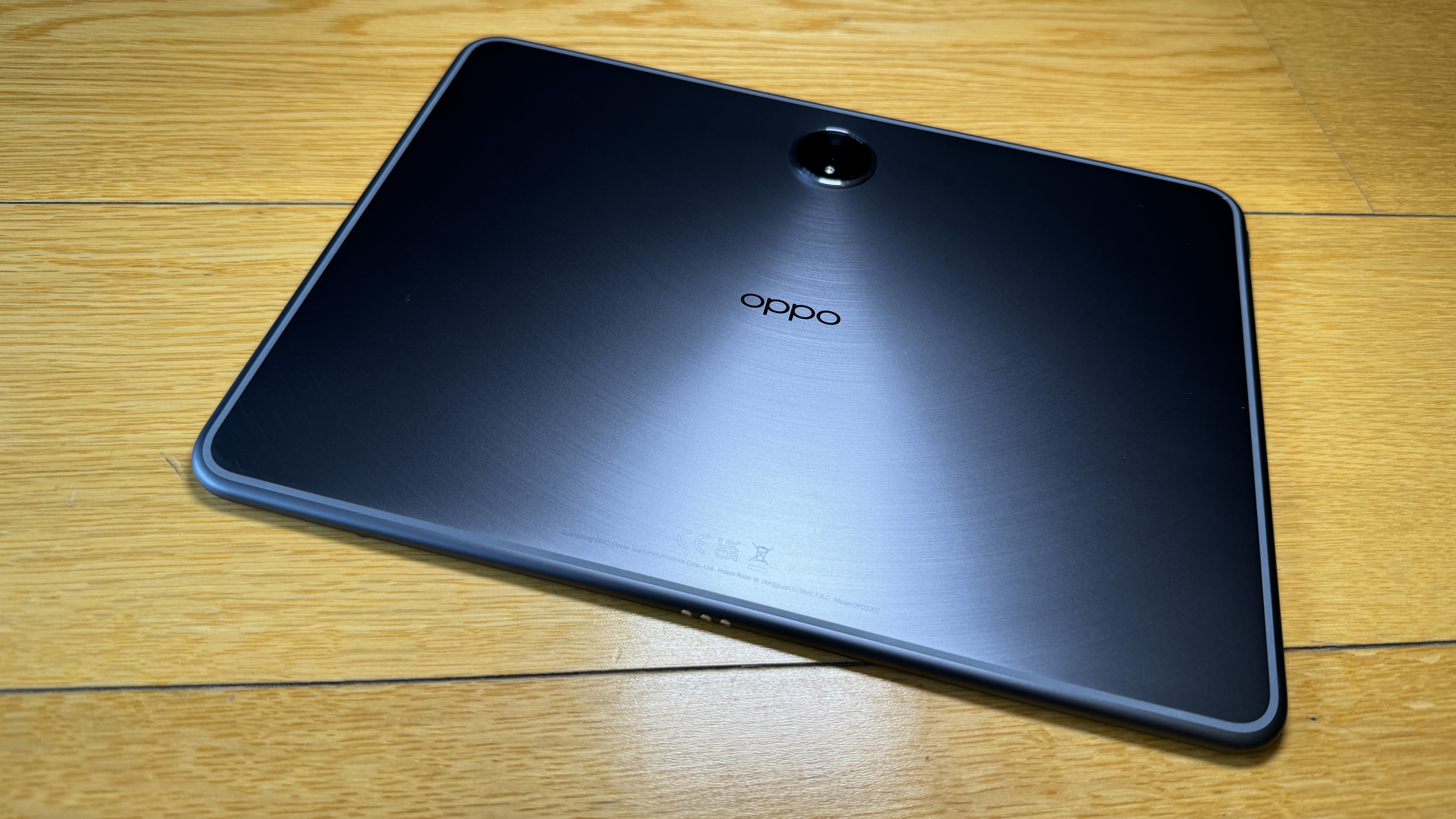
The Oppo Pad 2 is quite striking to look at. I don't mean watching the display - we'll get to that shortly. I mean the thing actually looks quite unique. It's very thin yet its unibody design gives it an extremely durable feel and the "star trail" engraving finish on the rear panel creates a distinctive, shimmery, light-catching effect while keeping the matte surface relatively free of fingerprints and smudges.

The rear camera module is also unusual - a raised, circular affair reminiscent of the cameras on Oppo's most recent handsets; the Reno 10 series and the foldable everyone's talking about, the Find N3. The Pad 2's camera is unusual because of its capabilities too. Still hamstrung by the unwritten rule that you can't have a high-spec camera on a tablet (I don't know why - you'll only ever get ultra-wide and proper telephoto lenses on a phone) the primary shooter on the Pad 2 is a mere 13MP affair, although it's capable of shooting up to 4K, offers zoom controls, even while filming and there are effective digital stabilisation and auto-focus options too. As far as tablet cameras go, it goes good.

It's also interesting to note where Oppo has decided to put that camera; in the centre of the upper side of the device when it's being used in landscape mode. At long last, more manufacturers have got the memo these devices are not giant handsets - most people will be using them in landscape, like a computer display, not in portrait like a phone.

But let's flip over and get back to that display. At 11.61-inches you might think the Pad 2 sounds a little oversized but the 7:5 aspect ratio is also pretty unique. Even when being held in landscape, you still get plenty of height. So the diagonal measurement is a little misleading here; this uber-slim tablet is actually much easier to handle than other shorter-but-wider devices. The extra height (when in landscape) really lends itself to multi-tasking with two apps open at once - something that's easy with the two-finger swipe gesture in the ColorOS software. Anyone who's used a recent Oppo handset will be familiar with this operating system and its intuitive gestures already. A three-finger swipe results in a shareable screenshot while a four-fingered pinch launches the app you're using into a floating window, which you can resize and position over other windows. So effectively, by both splitting and floating you can see three different windows simultaneously.

Not only is there plenty of screen real estate for all this but the display is bright, sharp and colourful to boot. We're talking ultra-high resolution at a refresh rate of up to 144Hz. This makes for a very smooth gaming experience and is combined with an impressively tuned, quad-speaker sound system to produce a classy Dolby Vision and Dolby Atmos entertainment experience. The Pad 2 is the perfect device to take to bed for some late-night binge-watching - and the display is big enough for two people to enjoy what's playing.

There's an excellent front-facing camera built into the upper bezel of the screen - again, in the most sensible position for online meetings or vlogging. As with the primary shooter on the back, you get quite a selection of photo features - even skin smoothing and other AI abilities. Unlocking the device with facial recognition is also snappy and reliable.

None of this is much use without a decent chip powering the whole show and that's where many tablets have fallen down in the past; promising a long list of features but coming up well short in terms of sheer performance.

Not with the Oppo Pad 2.

Here you get MediaTek's latest, the Dimensitiy 9000 and as such, I found every aspect of operation to be smooth, reliable and quick. There's only one storage option but it's more than acceptable for a tablet at 256GB. Connectivity is great; Wi-Fi 6 means a fast, powerful and dependable link to your home or office network and the latest Bluetooth 5.3 protocol is your gateway to a list of lag-free and lossless wireless codecs. In short, I've watched movies and played games wearing my favourite TWS earbuds and experienced no discernable delay with either dialogue or sound effects.

This is a very satisfying, easy-to-use and powerful device - and that's before you add useful accessories like the Smart Touch Keyboard or Oppo Pencil. The latter being a digital stylus that charges wirelessly when connected magnetically to the top of the Pad 2.

Battery life is excellent - although most of us expect that from a tablet if nothing else - that's kind of the point of them. However, because this is an Oppo device, you get the option of SuperVOOC fast charging - and very few companies have mastered the art of fast charging quite like Oppo has.

If you're thinking the Pad 2 might just be the tablet that converts me from a sceptic into a fan, you might just be right. It's light yet sturdy. The display is an unusual yet useful shape. The screen looks good, the speakers sound good and there's plenty of power under the hood to make everything work the way it should. This is no longer just an underpowered, oversized phone. It's a genuinely useful multimedia tool that I've thoroughly enjoyed using.


Click here for more information and pricing on the Oppo Pad 2.