Tuesday, 24 May 2022

A Light for Sore Eyes

I'm not really a light-it-all-up kind of guy.

In fact, I'm more of a turn-off-as-many-lights-as-possible guy. So much so, often my colleagues come into the radio studios I've been working in and immediately fire up all the fluoros, instantly causing me to curl up into a defensive, hedgehog-like ball to protect myself from the glare.

Perhaps it's because of the vampirish hours I keep, getting up in the middle of the night to go to work in breakfast radio. After a couple of decades of this unnatural behaviour, maybe I've grown intolerant of bright light, either natural or electric. It might even be a full-blown allergy.

So when I'm at home, it's no surprise you'll often find me roaming the house turning out lights other people (my daughters mainly) have left on in rooms they're no longer in. Actually, that's probably nothing to do with the light, it's probably more to do with having to pay the power bill.

Whatever - my point is I'm usually looking for less light, not more. So the idea of some kind of desk lamp has always seemed like a terrible waste of space for no real benefit.

But what if it didn't take up any desk space at all? Surely then I'd at least have to give it a try...


The BenQ ScreenBar Halo does not look like your average desk lamp. To begin with, it's in two quite separate pieces, the light itself and its wireless controller.

The light, as its name hints, is a slim, 50-centimetre long bar attached to an extremely cunning, adjustable clamp. The unique design of this clamp allows you to attach it to pretty much any monitor you like. Even curved displays are catered for with the included adapter which slots easily into place if required. There's a lot going on here; firstly, the USB-A power cable. The good news is it's a very long cable - 150-centimetres in fact. That should be plenty if you need to plug it into a wall charger or run it off your PC tower down on the floor. The bad news is, if you're using the ScreenBar Halo on a Mac, chances are you've only got USB-C ports to plug it into. This is exactly why I stocked up on USB-A to USB-C adapters a while back; so cheap yet so useful.

Another feature of the clamp is how versatile and easy to install and remove it is. Because it acts as a counterweight, it's padded and it's lightly spring-loaded, it basically just sits atop any screen with no adjustment necessary. Even on my iMac, which has a webcam built in at the very top edge, the front lip of the clamp stops just short of obscuring the view for your video calls. However, if you use an external webcam which also clamps on somehow, that could be a problem and you might have consider BenQ's webcam accessory which lets you mount your webcam to the ScreenBar instead.

Ultimately, the clamp's greatest asset is its large backlight, which is diffused through a special material to provide maximum illumination as softly as possible. The idea here is to light up the wall behind your monitor so there's not such a contrast between your display and its surroundings. This is supposed to help prevent eye fatigue - especially if your workspace is not particularly well lit to begin with. 

The main event is what's happening with the ScreenBar itself, of course. This might be the most adjustable strip of lights I've ever encountered. Obviously you can alter the brightness to suit your preference - the colour temperature too - in fact there are a hundred different levels to choose from. A bit much? Don't say you haven't got options.

The bar can be rotated within its mounting to ensure the lights are not shining in your eyes, only down over your workspace but perhaps the most ingenious aspect of the whole setup is the 2.4GHz wireless controller. There's no pairing involved, you simply install three AAA batteries, replace the magnetic base plate and you're good to go. This ergonomically angled, round controller can be placed anywhere there's space. It sleeps until you hover your hand over the proximity sensor, then you simply wind the edge around one way or the other to adjust brightness and temperature. 

You can cycle through front, rear or both lights on simultaneously and there's even a Favourite button to save your ultimate setup. I prefer to use the Auto dimming button - this hands over control to the ScreenBar Halo's built-in ambient light sensor, adjusting levels to an optimum 500 lux whatever the surrounding conditions.

To sum up, this ain't your grandaddy's desk lamp.

If I've made all this sound techy, geeky and complicated, I assure you that's not the case at all. In fact, the idea here is to set it and forget it. I've been using the ScreenBar Halo day and night for a while now and the only time I notice it is if I forget to turn it on. Because I miss it. I genuinely enjoy having my workspace bathed in this soft, warm, just-right light and there's plenty provided to illuminate my whole desk, so no need to turn on any other overhead lights, even after dark.

Sure it's a nice-to-have rather than a must-have - although if you find yourself rubbing your eyes by the end of the day, this might just provide some welcome ocular relief.


Click here for more information on the BenQ ScreenBar Halo.

Friday, 20 May 2022

Quality Sound Without the Cable

As usual, the hardest thing about choosing a JBL headset is choosing which JBL headset. By my count there are at least nine different options available on the JBL website right now - and that's just the selection of gaming headsets.

This means there is definitely an option to suit your requirements, without question.

Gamers - serious gamers - often worry about going wireless. The primary concerns are are lag and battery life.

It'd be nice to cut that cord though.

So the question is, how much are you prepared to pay to quell your cable-fee anxiety while still achieving a premium soundscape?


If you're looking for a massive change-up from last year's JBL Quantum 600 gaming headset, the Quantum 610 Wireless isn't it. In fact, to look at, most people would struggle to see any difference at all. In fact, in many ways the headsets are indeed identical. This means if you already use the 600, there probably isn't much reason to upgrade... well, there might be one reason but we'll get to that later.

Meanwhile, if you're only just considering a wireless headset for the first time, this is a pretty good place to start.

One thing that has changed this year is the way JBL packages its products. Plastic is out and cardboard is in. Now when you open the box you'll find the headset snuggled into a soft, (and presumably environmentally friendly) material bag - not really for carrying the headset around, just a cool way to keep it safe while in transit.

The headset itself is an all-black affair, other than the very-JBL diagonal orange stripes on the wires to each earcup. (There's a programmable RGB element here too - but we'll get to that later as well) Everything is thick, chunky and solid with lots of cushioning - this is not meant to be a multi-purpose headset that doubles as a foldaway commuter device or a lightweight workout wearable for the treadmill at the gym. This is for gaming and that means comfort and durability are key, something the Quantum 610 Wireless absolutely nails in every area. 

At first it felt a little too snug on my massive head but in fact I think this is just a result of how well balanced this device is, distributing its weight very evenly between my head and my ears. The result is the feeling of not much weight at all, quite a trick given how thick and plush the leather-like ear-cushions and headband are. The headband is also quite a bit wider than many other headsets I've worn over the years. This adds to the impression of durability and helps with the weight distribution even more.

I really do have an unusually large skull, yet the extendible arms click out plenty long enough to accommodate it comfortably. I've worn the Quantum 610 Wireless for many hours at a time now and I've experienced no pain or discomfort, even though I wear glasses. The ear-cushions seem to breathe well too - I haven't really felt my enclosed ears heating up even after a long session hunting down dinosaurs in Jurassic World Evolution 2.

In terms of setting up the Quantum 610 Wireless, you don't actually have to. By that, I'm not talking about the fact you can just use the 3.5mm AUX cable that's included in the box - although that's definitely an option. No, I mean you can just plug in the 2.4GHz wireless dongle, switch on the headset (via the only control on the right-hand earcup, an on/off slider) and you should be good to go. There's a "Connect" button on the dongle itself but I didn't need it - the headset was already paired out of the box.

There's a lot you can do with the headset in its default state, thanks to the controls on the left-hand earcup. There's a mic mute button, a volume dial and a game-chat dial, allowing you to mix the level of chat with the level of music and SFX from the game you're playing. However, there's plenty more to the Quantum 610 Wireless than that. Download the JBL QuantumENGINE app and suddenly you have access to dozens of customisations, from EQ and Surround Sound settings to firmware upgrades to RGB controls for the large JBL logos on each earcup.

These lights can be set to any of several preset patterns or you can quickly create your own - flashing on and off, swapping from colour to colour or, as is my preference, leaving them glowing solid red, the best colour of all.

For firmware updates you'll need to connect the headset to your PC via the supplied USB-A to USB-C cable - this is also your charging cable and yes, you can keep using the headset while you charge.

I'm not sure if you'll need to though as JBL claims up to forty hours use on a full charge. This is the big upgrade over the previous model I hinted at earlier. Last year's headset promised just fourteen hours - still plenty for an all night session but if you were frustrated by that, then maybe you should consider the new 610 after all.

Unfortunately, the QuantumENGINE app is only available for PC and as a result the surround sound effects offered by DTS headphone:X and JBL's own QuantumSURROUND won't work on MacOS devices either. However, that doesn't mean you can't use the Quantum 610 Wireless with a Mac - I'm listening to the new Florence + the Machine album on my iMac as I write this. And the good news is any lighting scheme you program for those flashing JBL logos will stick, even when you change devices.

In saying that, PC gaming is where you'll really benefit from the Quantum 610 Wireless' multi-channel soundstage. I've been playing a first-person mystery game called Firewatch, which involves a lot of hiking around a national park using a compass and a map. The directional sound-effects have been a massive help when completing certain tasks, like finding the idiot kids letting off fireworks when they're not supposed to. The benefits of this kind of surround sound have been well documented for shooting and fighting games, especially when trying to co-ordinate team mates versus enemy combatants. But I've also really appreciated how listening can help you find your way in the dark in a game like The Gunk - where there are lot of different paths, caves and obstacles to negotiate in varying light conditions. Sometimes, just stopping and listening is the best way to find out which direction to choose next.

Best of all, thanks to the 2.4Ghz wireless connection, there's no lag whatsoever. Unlike bluetooth headsets (even those boasting the very latest codecs) sound happens in real time. Dialogue looks synced and natural and critical sound effects like gun shots and approaching vehicles come across in real time. I've also found no loss in audio quality either. What's more, the mic quality is impressively clear - no-one will misunderstand your orders in that next firefight.

So the wireless connection is rock solid. The battery life is good for days. The headset is comfy enough to wear for hours at a time. The Quantum 610 Wireless may not be a huge upgrade on the previous model but that doesn't mean it isn't a great gaming headset, definitely worth a look (and a listen) if you're planning to cut the cord.


Click here for more information and pricing on the JBL Quantum 610 Wireless.

Monday, 16 May 2022

Lights Don't Get Much Smarter Than This

There's a reason Philips can get away with charging such a premium for its Hue range of smart lighting. It's the best.

If, like me, you've tried a bunch of other products you could well find yourself in the same smart home mishmash I'm embroiled in; different brands, different quality and perhaps most frustratingly; different virtual assistants.

I literally have to ask three different pretend people if I want to turn on the lights in my dining room, my bedroom and out on my deck all at the same time. How did I get myself into this mess?

At least I can usually remember which virtual assistant is in charge of which lights. Needless to say, the Domestic Manager is not impressed with the arrangement and often asks why we can't just have a switch on the wall like the old days.

She's funny like that.

Anyway...

The more Philips Hue products I use, the more I wish they were all I use - and the latest addition only emphasises that point.


The Philips Hue Play gradient lightstrip is quite a boring-looking thing when you take it out of the box; a fairly featureless white snake with black backing. Available in 55, 65 and 75-inch models, it's designed to be mounted on the back of your TV, approximately 5-10 centimetres in from the edge. I'm using mine with a 65-inch display and sure enough, it fit perfectly. Installation is very fuss free and it's thanks to the pared-back Philips Hue design I've come to expect.

There are several plastic mounting brackets included in the box with 3M adhesive strips on the back. Once you've stuck these in place, taking care not to block any vents or speakers, it's a simple matter to push the gradient lightstrip into position, starting from the middle which is marked with a tiny triangle.

There's a small controller box that also sticks to the back of the TV. You plug the lightstrip in one end of this and the cable from the power adapter into the other. Assuming you can run that wire down the back of your TV stand, the whole setup should be totally invisible from the front.

Then it's just a matter of adding the strip to your Philips Hue profile via the app.

Oh yes, I should probably mention you're going to need some extra gear to do that. And this is the major catch when it comes to the Hue ecosystem. To make any Hue lights work you'll need a Hue Bridge. (NZ$109.00) This is a little white box that connects your lights to your Wi-Fi. Why?

Well, there is actually a solid rationale. Do you want every light in your house connecting to the same router as your phone, laptop and TV? Or would you prefer just one device that controls them all? That's the point of a bridge like this.

But wait, unfortunately there's more; for a product like the gradient lightstrip to do what it's designed to - ie; mirror the colours on your screen on the wall behind it - you need a way to tell it what's showing on that screen and where. That's where the Hue Play HDMI Sync Box comes in. (NZ$599.00)

Instead of plugging your external devices like gaming consoles, streaming sticks and set-top boxes directly into your TV, you plug them into one of the four HDMI ports on the Sync Box instead. You then plug the Sync Box into your TV (or monitor) enabling the video signal to pass through on its way to the screen.

The good news is this is actually a pretty tidy way to free up HDMI ports on your TV, you'll now only need one where you may have required up to four before.

The bad news is to make your NZ$399.95 Hue Play gradient lightstrip work, you'll need that extra $708.00-worth of gear... assuming you don't already have it.

How does this make sense? Perhaps only if you make use of other compatible products at the same time - devices like the Hue Play light bar and White and Colour smart bulbs can be added to your Sync Box setup to further enhance your off-screen lighting experience. In essence, the more Hue devices you add, the more your Sync Box justifies its expense.

But do you really need any of it?

Of course not. Why on earth would you need to shine pretty lights on the wall behind a TV that's already doing some reasonably interesting stuff? Except... you don't really need the TV either, right?

On the other hand, if you've decided you do need a TV and what's more, you've splashed out on a nice big one with narrow bezels around the edge, you may as well go all the way and extend your viewing experience beyond the screen itself. This is what the Hue Play gradient lightstrip achieves admirably - with just a few minutes installation and setup.

Using the Hue Sync app, you can adjust the brightness and intensity of your lightstrip, setting it to turn on automatically when any of the connected source devices are powered up and you can even link to Alexa or Google Assistant for voice control.

I was actually pretty impressed with the result. The gradient lightstrip does a seamless job of matching the predominant colours on screen, no matter what those colours might be.

Although you might think this is some kind of sensory overload to make the most of full-on gaming sessions and action sequences in superhero movies, I've found a couple of other scenarios where the lightstrip proved its worth just as effectively.

Visually, dramas can be pretty boring. Oh sure, a good director can find unusual angles and call on filters and other effects to add to the mood but generally you're just watching two people talking. However, add a bit of Philips Hue Play into the mix and suddenly the director's tricks are brought further to life. A classic case in point is the recent (and final) season of Ozark. I've always considered the technical production on this programme to be exemplary, particularly the sound mixing. However, it was only once I started watching it with the Hue gradient lightstrip I realised how the entire show is shot exclusively in shades of blues and greens, presumably in homage to the water and tree-filled landscape on display. Very cool.

The other surprise came when I was watching the Highlanders trounce the Western Force the other night, a game made even more enjoyable by the extension of the pitch projected all over my wall - or at least that's how it seemed. When there were close-ups, the amplified colours of the players' jerseys created the impression they were in the room with you. I found it all extremely immersive - almost as though I'd been magically transported down to Forsyth Barr Stadium.

Interestingly, Philips has decided you don't need any lightstrip along the bottom of your TV - it's only long enough for the top and the sides. In the case of those of us using a soundbar, this is probably fair enough as the base of our screens is pretty much obscured. On the other hand, modern stands are generally pretty slim and often leave a visible gap below most of the TV.

Luckily for me, I have a couple of Philips Hue Play light bars, long narrow lights that work in a similar way to the lightstrip. These can be mounted sideways and added to the Hue Sync app as part of your setup. I've positioned them on my TV cabinet behind the soundbar where they're out of sight yet still manage to complete the overall, all-round syncing effect.

See? Completely unnecessary but quite fun.

If you're an avid gamer, I have no doubt you'd find the effect this kind of setup can create to be satisfyingly immersive.

Apart from the price, the only other drawback of this lighting system is the fact it relies on source video from external devices - there's no way to mirror content from apps and streaming services installed directly on your TV. It's for this reason I've resorted to using Netflix and SkyGo on my phone instead, streaming through the Sync Box via a Google Chromecast. I wish there was a Hue app we could load onto our TV's to avoid this extra step.

Admittedly, Philips also makes Ambilight TV's with coloured LED's already built into the back panel to achieve a similar effect but that's not much help here.

The Hue gradient lightstrip is one of those tricky products I absolutely love but find hard to recommend because of the price - not just the price of the lightstrip itself but the other accessories required to make it all work. I can't fault the design, build quality, ease-of-use and reliability though. If this is something you've been considering and budget isn't an issue, I certainly won't stand in your way.


Click here for more information and pricing on the Philips Hue Play gradient lightstrip.


.

Tuesday, 10 May 2022

A Vacuum Worth Putting On Display

I'm starting to feel like I'm living through some kind of global vacuum cleaner renaissance. It seems there's a new and improved way to vacuum almost every week. 

While it's fun to let the robots take over - and who doesn't love a good selection of attachments - there still aren't too many vacuums out there people would be happy to... leave out there. You know; on show in the room with you, instead of locked away in a cupboard.

If you think I'm kidding, get a load of this...


The Samsung Bespoke Jet Elite Extra is a long name for a vacuum but this is a cleaner with a lot going for it - starting with, yes, a look.

Samsung has a whole new range of "Bespoke" home appliances, which in most cases basically means cool colours, unusual finishes and unique design. For instance, the fridges now offer you a choice of "Cotta Metal" or "Glam Glass" in colours like Charcoal, White, Navy and Glam Pink. Stainless steel is so last decade apparently.

In the case of the Bespoke Jet Elite Extra stick vacuum, here in New Zealand your choice of colour is blue, blue or blue, no sign of the Misty White or Woody Green available in other regions. To be strictly accurate - neither the vacuum, its accessories or the Clean Station are totally blue - it's more of an accent colour combined with other elements of silver and dark grey. However, the overall design is inarguably pleasing to the eye - especially when the vacuum is docked in its station. This is due to the fact the Clean Station (which is also a charging station) is effectively just a tall cylinder suspended above a slightly wider base. When nestled in place, the Bespoke Jet itself is mostly obscured by the station so it doesn't really look much like a vacuum cleaner at all - more like some kind of high-end speaker or perhaps a crazy lamp.

And unlike most other stick vacuums, you won't lose any wall-space when you hang it up to charge - not much floor space either for that matter... well... there's a slight catch. The Bespoke Jet Elite Extra is both Elite and Extra because of the sheer number of accessories included in the box.

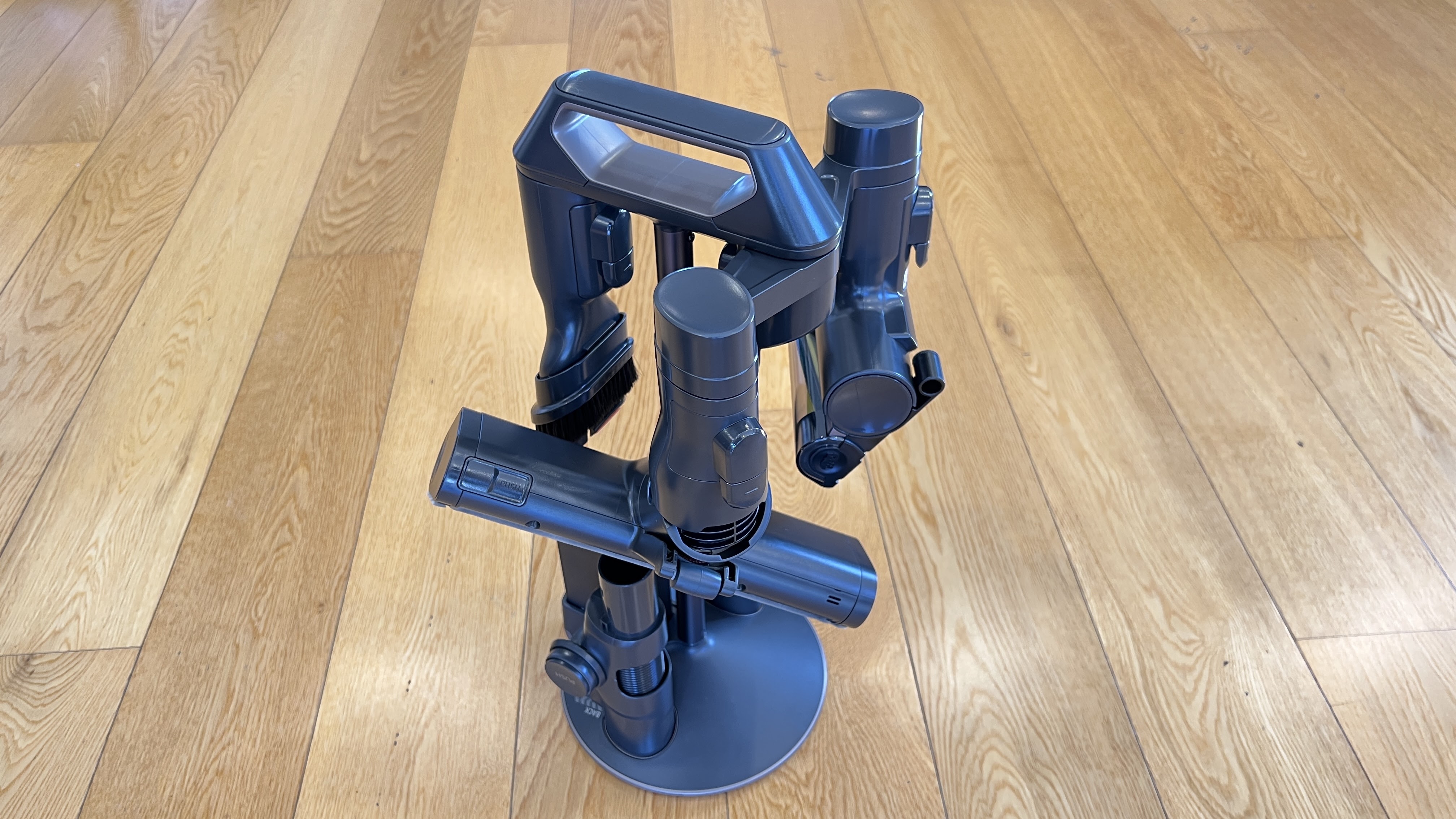
Perhaps the most important of those accessories is the Accessory Cradle itself. Not only does this store up to five separate attachments at once but it also charges a second battery. That requires a second power point and somewhere to put it all. Meanwhile, there's a carry-handle on top so you can unplug the whole cradle and bring all five accessories and the spare battery with you while you clean. Overkill? Perhaps, but then that's kind of what this vacuum is all about.

Let's get back to the Clean Station before we discuss the Bespoke Jet itself. As the name indicates, the Clean Station is not just a groovy way to store and charge your vacuum. Existing owners of the previous model Samsung Jet 90 pet stick vacuum will be aware of the optional Clean Station that can be bought to keep the emptying process totally touch-free. This stand-alone Clean Station works almost like a second vacuum cleaner, although you have to physically remove the dustbin from the Jet 90 pet then place it in the top of the Clean Station where it is sucked empty in a matter of seconds.

By combining the storage/charging dock with the Clean Station, the Bespoke Jet Elite Extra refines this process considerably. Now you can empty the vacuum any time you hang it up - much the same way a robot vacuum with an automatic-emptying station works. This all happens with the push of a button, sucking the contents of the dustbin down into the much larger, easily disposable bag in the Clean Station itself. Therefore you avoid the dusty, dirty process of emptying the bin into your rubbish yourself - although you will eventually have to give the dustbin and its filters a good rinse out at some stage.


In fact, the Bespoke Jet will let you know when that maintenance is required, via the clear and bright LCD display just above the handle. This is where you will usually see how much charge is left and what power setting you're using; Low, Mid, High or the intriguing Jet setting. This last is perhaps the strongest suction I've ever experienced from any kind of vacuum cleaner, making it a genuine effort to push the Bespoke Jet over carpeted surfaces. You certainly wouldn't want to vacuum the whole house at that level - you might suck yourself into another dimension. It also slays the battery life - you'll only get about eight minutes of Jet vacuuming versus twenty-four minutes when set to the default Mid which is perfectly sufficient for most areas and surfaces.

That said, as I've already noted, you do get an easily swapped-out extra battery in the box so available charge should never really be an issue.

Another fairly unique aspect of the Bespoke Jet is its extendible, telescopic pipe. Those old-fashioned vacuum cleaners like Mum had could sometimes be extended out for the comfort of taller users but for some reason, this just hasn't been an option on non-Samsung stick vacuums. I wish I could replace the Bespoke Jet back into its clean station while still telescoped out but unfortunately it only fits when fully retracted. Life is so hard sometimes, isn't it?

Right, let's run through these attachments; the motorised Jet Dual Brush combines a soft roller for hard floors with nylon and rubber bristles on the main brush that rotate at 4,000rpm. This seems to do a fine job on all my floor coverings - from wood to carpet to rugs - and I've been impressed with how little hair ends up wound around the main brush. It's also easy to take apart and reassemble if it does get clogged (you'll get a warning message on the LCD screen if this happens). There are two other brush heads - firstly the Slim Action Brush which only has a fluffy roller (with anti-static silver) specifically for hard floors. The joint assembly where this flatter head connects to the main tube is slightly more flexible so you can manoeuvre more effectively under furniture and into tight corners. Like the Jet Dual Brush though, it is still spring-loaded to present its attaching end up at a convenient angle. Don't you just hate bending down unnecessarily?

The other motorised brush head is the much smaller Pet Tool - ideal for duvets, furniture and car interiors.

In the box you'll also find the fairly standard Combination, extendible Crevice and Flexible tools, along with a couple of extra dust bags for the Clean Station.

Much less standard is the Spray Spinning Sweeper - another evolution of an optional accessory for the Jet 90 pet that's now included in that very big box. This head simply rotates your choice of two disposable wet cloths or reusable (and much better for the environment) anti-bacterial microfibre pads - at about 260rpm. There's no suction involved here - this is strictly a mopping operation only, albeit a pretty low-effort-required one. Especially given the option of spraying a little extra water on stubborn marks via the small Easy Clean Bottle inserted in the mopping head itself. The Bespoke Jet automatically changes to Wet mode when you attach the Spray Spinning Sweeper which means you can't suck but you can spray water by pushing the + button. This didn't actually work when I first tried it but by following the troubleshooting guide in the manual, I was able to purge the air in the line by operating the spray function without the water bottle in place. Everything functioned perfectly once I reinserted it. Does a great job too - those doggy paw prints are polished away in no time and the floor dries nice and quickly with no streaks.

In short, this is a hell of a package. Easily the best looking vacuum cleaner I've ever seen, perhaps the strongest suction I've ever experienced, with enough battery reserves to handle even very large homes. The Clean Station is literally a breath of fresh air and the selection of accessories included in the box is comprehensive to say the least; making mopping easy is a big tick in my book - especially with Winter and a wet dog on the way.

Not everybody would be prepared to shell out NZ$1799.00 for a vacuum cleaner but if it's in your budget, this one is about as feature-packed as it gets.


Click here for more information on the Samsung Bespoke Jet Elite Extra stick vacuum.

Sunday, 8 May 2022

Don't Waste a Single Ground

If you're anything like me, nothing happens till that first coffee of the day.

I don't mean that figuratively. I mean, I'm physically incapable of achieving anything useful until I'm fully caffeinated. Even talking in complete sentences. Just forming the words. Not an option.

Is that bad?

Probably. 

Am I an addict? Perhaps.

Regardless, I need that fix and I need it as quickly and as efficiently as possible. Yes, I much prefer fresh-ground, barista-poured but I also prefer no fussing about.

And the last thing I need first thing in the morning is a mess.


Breville has decided it's time I cleaned up my act, with the Barista Express Impress.

Before they added the "Impress" part of the title, the Barista Express has been one of New Zealand's most popular home espresso machines - if you don't own one I'd say you probably know somebody who does. It's compact, reliable, easy to use and maintain and it's a great one-stop-shop for grinding, extracting and steaming your own barista-style coffees.

I used a similar machine for many years with great satisfaction albeit with one minor drawback; to get enough ground coffee into the portafilter for "optimum extraction" meant filling it to overflowing, so you could then tamp the grounds down, achieving the ideal level of compaction for the right amount of pressure.

That not only meant the mess of spilt coffee grounds all over the machine and benchtop but wastage too. Sure, only a few pinches of coffee every cup but it all adds up over time.

Now Breville has definitely "Impressed" by adding an Assisted Tamping mechanism to their already wonderfully designed espresso machine. This means from the moment you insert the portafilter under the hopper, right through to tamping down the grounds, everything is completely self contained and there can be no spillage.

The whole process is very streamlined indeed - starting with Breville's Intelligent Dosing system which supposedly learns from every grind and tamp, even weighing the beans - to provide you with a consistent dose of ground coffee every time. This means you don't have to guess how much to grind yourself - the Express Impress does it for you. If that means one less thing I have to think about while still half-asleep, I'm for it.

Then the Assisted Tamping comes into play - while Breville's other espresso machines often feature a tamper tucked neatly away in a clever magnetic cavity for when you need it, the Express Impress has a lever on the side instead. Pull it down and the concealed tamping mechanism applies 10kg of pressure to your grind, every time. There's even an LED display to show you if you've ground the correct amount of coffee - if you haven't got quite enough in there, you can push the Dose button one more time for a little bit more. The green LED next to the smiley face symbol then lights up with a little beep and the Express Impress will remember that amount for next time.

Then it's a simple matter of transferring the portafilter over to the extractor and if you've got the dosage and tamping right, you'll see the pressure gauge swing into the "Espresso Range" while your coffee's pouring.

Of course, a major part of the equation is grind size too - the dial below the bean hopper offers a slightly-over-the-top twenty-five grind settings so you can fine-tune your shot depending on which bean you happen to be using.

I really have no idea what a Thermocoil Precision Heating System is but I can report the resulting espresso from the Express Impress always comes out nice and hot - never overheated or burnt-tasting.

My one drawback with this machine is when it comes to steaming the milk. I'm a latte guy usually (my god, that sounds so Aucklandy) so I'm definitely after some hot, smooth froth. While I've found the manual steam wand certainly does a great job of heating the milk, there seems to be a fine line between velvety foam and less desirable, soapsud-style bubbles. I'm sure this is more a testament to my personal inadequacies as a barista than an indictment on the Express Impress itself, although I've definitely used faster, more powerful steam wands with better results. (I must confess, I'm so lazy my preference is a machine with an automatic milk dispenser but that's a whole other category.)

The Barista Express Impress is not the first espresso machine I've used with a self-contained tamping setup like this but it might be the most refined. There's a bit of fiddling around with dosage and grind size when you first set it up but after that it's my ideal scenario; perfect coffee every time without having to think about it. You don't even have to pull very hard on the tamping lever, it's precisely engineered to apply all the pressure for you.

Lazy? Perhaps. Convenient? Definitely. Less mess? Absolutely. Thank goodness.

After all, if you can't be a little lazy first thing in the morning, when can you?


Wednesday, 4 May 2022

And Now for the REAL Weather...

I'm a weather skeptic.

It's not that I don't believe in weather. I just don't believe the weather forecasts. I mean, come on. You have to admit, don't you find it weird that in 2022, when I can literally measure my own ECG from my smartwatch, we still don't seem to have the technology to tell us if it's going to rain tomorrow or not?

All we get are vague chances and percentages. Sometimes right. Sometimes not. What's the point of all the balloons and satellites and meteorology degrees? The may as well just throw a dart at a board. As for the weather next week, next month or next year... forget it.

And yet, it's all anyone ever wants to talk about. It even takes up about half the nightly TV news bulletins. How is guessing what the the weather might be news? Especially when it's usually wrong. It's like the whole world has been scammed. Forever.

Thankfully there is a way to take back control. Not control of the weather - if only. But at least you can monitor it for yourself.


Netatmo is a French-based consumer electronics company with a knack for developing connected devices that are not only simple to set up and use but are also designed to blend in with your home, rather than stick out like a clunky tech eyesore.

The Netatmo Smart Home Weather Station follows those principles precisely.

The concept of a home weather station isn't new - I've seen many versions in many houses over the years, usually involving some kind of device with a screen inside connected (by a wire) to a sensor outside, that wire most often snaking out through a window. Not very elegant. And probably not particularly informative either.

The Netatmo Weather Station is in a whole other league. Right out of the box both the indoor (base) and outdoor modules are about as subtle as a piece of tech can possibly be. With a muted, matte aluminium finish, there's not much to keep these essentially featureless cylinders from fading into the background wherever you decide to place them. Even the taller base module is only about the size of a salt and pepper shaker, with a single status LED running down its side which turns off once you've set it up.

Obviously, as a smart device the inside and outside modules are connected wirelessly. This setup process is a simple, guided, step-by-step affair, courtesy of the Netatmo weather app or via the Home app if you prefer to add devices using your Apple HomeKit ecosystem. It's really just a matter of plugging the base station in using its supplied USB-C power adapter and connecting to your Wi-Fi.

Similarly, adding the outdoor module is just as painless; unscrewing the base, removing the protective plastic strip from the battery compartment and keeping it in close proximity to the base while pairing. Even installing the outdoor unit was a doddle, thanks to the accompanying velcro strap and hook - I didn't even need the screw included in the mounting kit as I had a convenient downpipe in a shady, sheltered location.

At this point I'm already able to monitor a lot of stuff; temperature of course, both inside and out. Also humidity and barometric pressure are clearly displayed - either on the app, via live widgets (yes there are widgets for both Andoid and iOS) and even more clearly on the website portal. All of this syncs via your free Netatmo account. 

What I wasn't expecting was CO2 readings and sound measurements. Yes, the main weather station shows you if things are getting too loud or too stuffy. Remember, you can access your Netatmo weather info from anywhere, also customising notifications if certain measurements are exceeded. So if the decibel sensor suddenly shows there's a party going on you weren't expecting while you're out, it might be worth giving the kids a call to see what's going on.

But if you're prepared to shell out for this premium weather tech, you may as well go whole hog and add the Smart Rain Gauge and Smart Anemometer.


Again, both these devices are to be praised for their elegant yet no-more-than-absolutely-necessary physical designs - neither gadget any bigger than a small paint tin and neither with any external moving parts.


These accessories are also powered by AAA batteries, although frustratingly the base on the anemometer is held on with four separate screws (as opposed to the whole base plate just unscrewing on the rain gauge and outdoor module). This was especially annoying as I took too long to pair it after I inserted the batteries and it went to sleep. Then I had to unscrew the four screws, re-start it and re-screw the screws again. At least it's supposed to run for up to two years before I have to replace those batteries.

Both rain gauge and anemometer (wind meter) are simply mounted via a central screw hole in their bases, although strangely, given their price tags, no actual mounting hardware is included. Ideally the rain gauge needs to be located somewhere exposed and free from obstructions and the anemometer is supposed to be positioned a fair distance from ground level, so I would have liked to have seen a selection of brackets, screws or other fasteners to cater for a variety of circumstances. Instead, I was left to rummage through my man-cave to come up with some compatible (or close to) hardware.

Impressively though, there was no issue with connectivity - Netatmo claims you can position the accessories up to 100-metres from the base unit and from my testing that certainly seems to stack up.

The rain gauge's translucent plexiglass funnel channels water into the device over a simple (there's that word again) balance mechanism. The rain then runs out the bottom so there's no need to empty anything - not like back in the old analogue days of filling up one of those upside-down plastic triangles nailed to the fence.

Rain is one of those things that can be very localised indeed, so I've found it interesting to know exactly how much we get at our place on a so-called "rainy day." Again, you can ask the app to notify you of any significant rainfall which could be vitally important if you have washing out or you've just painted something and left it to dry.

Meanwhile, Netatmo's anemometer is not one of those spinning cup arrangements you might have been expecting. Instead, it uses a combination of four ultra-sound sensors to assess wind strength and direction. As I said earlier - no moving parts, so no maintenance and best of all, no noise.

With all four of these devices up and running, I now have a wealth weather data at hand, on my phone. And best of all, it's weather data specific to my home. You can check live readings at any time from anywhere and historical data is shown via graphs you can zoom in and out on - either via the app or on the website portal.

If you've positioned the indoor unit somewhere handy, you can tap it for an instant update of all your readings - although there's not much need as this happens automatically at regular intervals.

As I've alluded already, the whole set will cost you hundreds - and you can even add up to three more indoor modules if you want to go really bananas - so the big question is; is it worth it?

Here I find myself pausing. If I was an avid gardener, or boatie - or perhaps some kind of tradie who works outdoors then I think for sure having this kind of live and accurate weather info on tap would be invaluable. How often have I been in the situation, especially when trying to grow grass or shrubs over Summer, when I've asked myself, "Have we had much rain over the last few days?"

Now I know the answer to that kind of question for certain.

How about, "Will it be too windy to sit outside tonight?"

Now I can look back to the last time we spent an evening outdoors and compare the conditions.

Personally, as I said right at the top, I'm definitely not one of those people who's obsessed with the weather but I know there are plenty of you out there and this might be an amazing new portal for your amateur meteorological ambitions. All I know is, next time we're about to walk the dog and Domestic Manager asks me, "Will I need a sweatshirt?"... I'll be able to tell her for sure.


Tuesday, 3 May 2022

A New Standard In Hands-Off Vacuuming

It's official. I'm a convert. Robot vacuums are the future. In fact, in my house, they're the present and after trying a few I can no longer go back.

Friday used to be vacuuming day for me. That meant I'd get home from the supermarket (yes, also supermarket day) only to have to then spend the best part of an hour vacuuming. Don't get me wrong; I'm a gadget addict - so I've had some pretty whizzy vacuum cleaners over the years. In fact, my house has a central vacuum system installed that I've never even used.

Still, that's an hour of my Friday I could be doing something much more enjoyable with. Like sleeping. Or melting cheese on things.

So having a vacuum cleaner that can operate itself, on a schedule of my choosing... well now I have that hour back. Or do I?

As fun as it is to not actually do the vacuuming, over time I've discovered not all robots are created equal and there can certainly be a bit of maintenance required. Brush heads need to be detangled and even auto-emptying robot vacuums seem to get clogged on a pretty regular basis.

As for mopping, this usually means fitting then removing a special pad or head - those pads then need cleaning or perhaps they're disposable. Either way, things can end up a bit of a mess and suddenly you're wondering if all this fuss is really easier than just doing the floors yourself.

Luckily, progress marches on...


The people at ECOVACS seem pretty excited about their latest and greatest, the DEEBOT X1 OMNI. 

Right off the bat, it's pretty striking due to its larger-than-ever auto-emptying station - this is the OMNI part of the equation and it's big, bigger than most kitchen rubbish bins. If you don't have anywhere to put it, this may be more robot than you can handle. Oh, did I mention you can only set it up on a hard floor?

Luckily for me, a large part of my home has wooden floors and I've found a spot just large enough to stash it. The jury's still out from the Domestic Manager if it's allowed to stay there. What's working in my favour is ECOVACS brought in the Jacob Jensen design team to give the X1 OMNI a Danish minimalist makeover. So rather than some stark, white, utilitarian box in the corner you have a classy, matte silver and black box in the corner. It's a talking point anyway.

Of course, there is a reason this Deebot has been upsized; it now fills its own water tank and washes and dries its own mopping pads. Yes, you read that right. The OMNI Station houses two large water containers, one for clean, one dirty. Both of these are simple to remove, fill, empty and reinstall and it genuinely does mean you no longer have to muck around with wet, dirty mopping pads. 

I didn't really believe it until I saw it in action - not that there's that much to see. However you can hear water being pumped into the tray at the base of the OMNI Station so the twin mopping pads (yes, there are two now) can rinse themselves out. That dirty water is sucked away and warm air is then circulated through the pads to dry them out.


What's more, the X1 knows when the pads need a clean and will automatically return to the OMNI Station for another rinse-off mid-mop.

The only downside to all this is you still have to manually attach or remove the mopping pads yourself - the X1 won't go near carpet if they're in place. Some other robot vacuums have a mop-raising configuration to deal with this and perhaps a future DEEBOT will too. Mind you, the X1's unique OZMO Turbo 2.0 rotating mopping system is vastly superior to any I've used before. Because the twin mop-heads protrude slightly from the rear of the device, they do a much better job of getting into tight spaces and corners - like around chair and table legs.

It's not all about mopping obviously. ECOVACS has made plenty of other advancements on the vacuuming side of the equation too. The X1 now sucks at a whopping 5000Pa - up from 3000Pa on the Deebot T9+. 

While the X1 uses the same TrueMapping technology as its predecessor to create a virtual plan of your home on its first run, you now have the option of "Quick Mapping" - this means the X1 does a super-fast run around the house without cleaning it so you can then bring up the map on the ECOVACSHOME app and edit it if need be, merging, splitting and naming rooms or adding virtual no-go areas. In my case, I have quite a few floor-level windows and a wide set of bifold doors we like to leave open when it's hot. Obviously the X1 thinks outside is just another room it can't get to through those windows and I'd rather not have it bobble through the bifolds out onto the deck. The app helps you sort these things out right from the start.

The X1 also boasts "AI computing power and an astrophotography-grade RGB camera" as part of its AIVI 3D avoidance system. Of course, that's just advertising speak for clever programming and a built-in camera. But it works. If you're whipping up a storm in the kitchen, the X1 will see you there and politely come back later. Better still, you can log into the app remotely and have a look through the camera - even tasking the robot to patrol your house if you like.


This is not Oscar-winning footage but it's definitely useful enough to see if you left that door open or to check on your pets. You can even talk to your pets via the app if you really want to freak them out.

The auto-emptying capabilities of the OMNI Station are also a major improvement. I have two cats, a dog and people with hair living in my house and previously that's meant a lot of clogging - not just for robot vacuums but any vacuum. Since I've been using the X1 I haven't had to go near the dust bin or floating main brush at all. Very impressive.

Less impressive is YIKO, ECOVACS debut attempt at their own voice assistant. You can still use other assistants for simple commands like starting and stopping vacuuming but YIKO has a wider vocabulary. You can ask YIKO to do quite specific things; clean the mopping pads for example or even find out how much life is left on consumables like the side brushes. One small problem though; I couldn't get YIKO to answer me. Not at first anyway. In theory, you simply say, "Okay YIKO" and the robot responds to let you know it's listening for your command. I must have spent ten minutes repeating the words, "Okay YIKO" again and again. I read the app from cover to cover. I Googled it. I even left a message on the ECOVACS help desk.

Then... well then I tried accents. Sure enough, by applying a bit of method acting and imagining myself working in the DEEBOT factory, I finally got YIKO to listen to me. Not the end of the world given all the X1's functions are available through the app and there are even a few controls on the OMNI Station itself. However, if you want your X1 to utilise its "Follow My Voice" functionality, you'd better start learning how to speak DEEBOT.

I have no doubt YIKO will become more refined and more useful in future updates and I also have no doubt this is the most full-functioned and autonomous robot vacuum I've tried yet. I've been using it for weeks and still haven't got my hands dirty once. Best of all, I now have most of my Fridays back. Now if only I could send a robot to do the shopping...