Before Spotify. Before iTunes. Before mp3's. Hell, before CD's, cassettes and LP's... there was this thing called radio.
What may surprise you is, it's still there.
But how do you get it?
The JBL Tuner FM is certainly a tidy little unit. Smaller than a block of cheese, it feels solid and durable. There are no sticky-out knobs or sharp corners. It can easily be stowed in a bag without taking up too much space or getting tangled up with anything you have in there.
Since the invention of the transistor, radio has been the entertainment source you can take with you wherever you go... but somewhere along the way we forgot that and started fiddling with our phones instead.
Of course, another cool thing about radio is it doesn't use your data if you're out and about and it doesn't need to connect to the WiFi.
If this all sounds a bit rudimentary, I guess it probably is - and maybe that's why the JBL Tuner FM is somewhat... basic. It works very much the same way as a car radio. You can scan for your favourite stations and choose five to save to your presets, with a simple long-press of a button. There's a backlit digital display to show you the frequency and sometimes the name of the station - but only sometimes. I couldn't quite figure out how to make this happen all the time, so I'm pretty sure this is a feature controlled at the transmission end, not the receiving end.
And the receiving end receives very well. Ironically, given I work in radio, I live in an area that's notoriously spotty when it comes to radio reception. When I fired up the Tuner Fm, I was presently surprised to find all my preferred stations booming through loud and clear... along with quite a few stations I'd never even heard of. This is probably due mostly to the old-school external antenna which retracts snugly into the body of the device when not in use, but is thick enough and strong enough to take a few knocks.
The Tuner FM isn't just a radio of course, it also doubles as a bluetooth speaker, and a pretty decent one at that. You'd expect any JBL speaker to be loud and bassy and the Tuner FM is no exception. Sadly, unlike other JBL speakers, this one isn't waterproof, so you'd better keep it on your towel if you take it to the beach.
The other feature I miss is JBL Connect - the ability to link with other JBL and Harman/Kardon speakers. This is a shame because it would be nice to be able to have the same radio station playing all through the house. Especially my station. Obviously.
What really sets this radio apart from your traditional transistor is modern battery technology. It charges using a conventional microUSB charger. That charge will last around 8 hours... although I've found that actually understates playback time if you're only using the Tuner FM as a radio - that doesn't seem to use much power at all, as opposed to a bluetooth connection which runs things down much faster.
At first glance $119 seems a little steep for such a straight-forward device. (Although you may find it a bit cheaper if you shop around) But this truly is two solid devices in one; a relatively grunty, uber portable bluetooth speaker combined with a fantastic FM radio capable of picking up a heap of stations with crystal clarity. Yes, it's simple, but it works.
Click here for more information and pricing on the JBL Tuner FM.
Over, on or in... the choice in ear-wear has never been so overwhelming.
Who could have predicted the explosion in earbud options alone? Is there a reason to upgrade from the pair that came in the box with your phone? And if so, how far should you go?...
Samsung's Galaxy Buds are a pleasure.
Often cutting edge technology throws up almost as much frustration as satisfaction, but Samsung's follow-up to its Gear IconX buds gives me almost no cause for complaint.
The first pleasurable feature is how tiny the Galaxy Buds are. I've tried quite a few bluetooth buds and till now most of them stick out of your ears rather absurdly - a bit like that thing Lieutenant Uhura used in the original Star Trek TV show. This can make them both uncomfortable to wear and prone to flopping out. Oh, and looking stupid. Not the Galaxy Buds. They're extremely subtle to look at and come with a nice selection of wings and tips to fit any ear canal. Not that I've tried any of the other options. For the first time ever, I wore these buds as they came, straight out of the box, ran seven k's and never had to adjust them once.
The single most comfortable earbuds I've ever used. Period.
If you pre-ordered a Galaxy S10, you may well have received a pair of Galaxy Buds as part of the package. If so, you'll already know how idiot-proof the pairing process is. In fact, I did it almost without realising it - the second you open the case a pairing request automatically appears on your phone's screen. Accept and you're done, just like that.
Some bluetooth earbuds are connected together by a behind-the-neck lead but I've always preferred the freedom of cable-free or "True Wireless" buds like these. Unfortunately in the past this has meant a serious compromise in battery life due to the buds having to connect to each other as well as the device you're playing from. While the idea of a charging case certainly makes it easy and convenient to top them up again, it'd be nice to get more than an hour or two out of your buds before you have to bung them back in the case. Well you get way more than that with the Galaxy Buds. While I haven't had a chance to test the "Up to Six Hours" claim on the Samsung website, I've certainly watched whole feature films with no difficulty whatsoever.
Like the buds themselves, the charging case is also small, with cleverly moulded compartments that will only let you position each bud exactly the right way for charging. The case holds enough juice for a couple of full charges, which is a bit disappointing... or it would be except for its greatest trick. The case charges wirelessly too. You can pop it down on any Qi charger or of course, the Galaxy S10 phones have a Wireless PowerShare function that means you can charge up from the handset itself. No disappointment there. Only coolness.
Although there is no Active Noise Cancelling (ANC), the Galaxy Buds fit so snugly I've found they do an amazing job of cutting out most ambient sound... sometimes too good a job. I'm sitting in a public library while I write this and I just took a call. While the guy I was talking to could hear me fine, I have no idea if I was whispering or shouting - I couldn't hear myself at all. Nobody asked me to leave, so I can't have been yelling too much.
This super tight fit doesn't just keep out the noise, it means you get great bass response and extremely clear audio without having to crank the volume. At first I felt as though I just couldn't run the Galaxy Buds as loud as I wanted to - but I've come to realise I don't actually need to squeeze my music and podcasts past the point of distortion anymore as I can hear every note or word at a more comfortable level. For example, I've been wearing the Galaxy Buds while vacuuming, using power tools and even mowing the lawn. I've had no trouble enjoying whatever I'm listening to with virtually no intrusion from outside racket.
Using Samsung's Galaxy Wearable app, you can choose to let in the ambient noise (if for example your wife has grown tired of trying to get your attention with no response). You can also assign that function to a long press of either earbud.
In fact, the app is very useful indeed - the long press can be set to summon your voice assistant or perhaps most usefully, you can set one side to turn the volume down and the other to turn it up.
Single taps play and pause while double taps skip tracks or answer calls.
This is a fair amount of operational functionality for a device that doesn't actually have any physical buttons.
You can customise your EQ preferences to a degree, choosing from a selection of five presets. Right now I'm listening to the acoustic folk/R&B genius of the Wood Brothers and the double bass is so clean and true it's giving me goosebumps. There's excellent separation with the stereo effects... it's an audio party in my head.
The Wearble app even lets you decide which notifications you receive from any apps installed on your phone - these manifest with about the most subtle alert tone I've ever heard. Even the tones you hear when you insert the Galaxy buds are more musical than intrusive - soft sounds to let you know they're paired up and ready to go.
The only question that remains... is $299 too much to pay for a couple of tiny bits of plastic you might lose between the couch covers? ($299 is the RRP - you can find them cheaper in some places) It's a tricky one. They are easily the best earbuds I've used, so I suppose they're worth saving up for. And they're not even the most expensive option out there - several other manufacturers offer similar products with less functionality and charge more for them.
They say good things come in small packages. The Samsung Galaxy Buds are very good things indeed.
Click here for more information on the Samsung Galaxy Buds.
As a record-breaking kiwi Summer finally comes to an end, I know it seems crazy, but it's time to consider your home-heating options again.
The good news is, if you thought Dyson was all about fans and vacuum cleaners, they've added another string to their bow...
If you're thinking, "Wait, I've seen this before," that's because the Dyson Pure Hot+Cool looks a lot like the Dyson Pure Cool.
Even when you just write it down...
Not sure who's in charge of naming things at Dyson, but as I always say, when it comes to design, nobody else comes close.
When I reviewed the Pure Cool, I loved it - even though I really only had Dyson's own app to prove if the air was more pure after using it.
On closer inspection, the Pure Hot+Cool actually has a lot more to offer.
For starters, the colour scheme is so much cooler (cooler figuratively, not literally). Black and nickel seems a lot more modern and ties in with more furnishings than the stark white of the Pure Cool - not to mention the bright, bright, BRIGHT purple associated with other Dyson products like fans and vacuums.
The Pure Hot+Cool is significantly shorter than the Pure Cool - so initially I wondered if it would be as effective in a large space like my living/dining/kitchen area. I soon learned this was no cause for concern, as I accidentally discovered the new tilt feature. This lets you angle the device upwards so the signature bladeless fan can blow up as well as out. There's no special lever, button or catch to make this happen - you just tilt it to your preference. As I say, it's so easy I did it by mistake when I was installing the filters - another operation that is so well designed, you don't think you've done it properly because it's just so easy to do.
Often, it's a collection of small improvements that add up to a major step forward. One of these little tweaks is the power plug, which is now a more standard size and shape, compared to Dyson's previous oversized, rectangular boxes that hogged far too much space on a typical double wall outlet.
Obviously, the big difference between the Pure Cool and the Pure Hot+Cool is the "Hot" part. This device brings the very best of Dyson's purifying, fan and heating technology together in one compact unit. I'm surprised they haven't come up with a way for it to clean your floors as well - maybe that's next year's model.
Funnily enough, I always thought the "Cool" side of the Pure Cool was slightly overstated, as of course at the end of the day, it's just a fan - not an air conditioner - albeit an extremely groovy fan. What I mean by this is fans don't really reduce the air temperature, they just make it more comfortable by creating a nice breeze.
In this case, there's no question the "Hot" part of the equation does the business. The Pure Hot+Cool is capable of raising the temperature, even in a large room, by several degrees in mere minutes - all thermostatically controlled, either with the accompanying remote, which you can leave conveniently magnetised to the top of the device itself, or you can run everything from the Dyson Link app.
The advantage of doing it with the app is you can activate the Pure Hot+Cool from anywhere - switch it on when you leave work and have everything toasty-warm by the time you get home.
The fan has 10 speed settings which you can select yourself or simply set to auto. While the low settings are extremely quiet, (even a night-time mode that turns down the display and the sound) you'll certainly be aware of the noise by the time you get up to 9 or 10. In saying that, at least it's a steady whoosh - not the rattle and clatter more commonly associated with conventional fans and fan heaters.
The unit also has variable oscillation settings - right up to 350 degrees, even when fully tilted. This means unlike conventional fan heaters which only point in one direction, you can effectively place the Pure Hot+Cool in the middle of the room and it'll blast cosyness into every corner.
Best of all, what other heater removes 99.5 percent of any nasties out of the air as well?
The Pure Hot+Cool is easy to operate and offers plenty of customisations, especially via the app - which even let's you program when you want the unit to turn on and off automatically.
It's a high-tech fan you don't have to store away in Winter and an efficient, intelligent heater you don't have to store away in Summer. When you add the ability to monitor and improve the air quality in your home, the $999 price tag starts to sound pretty reasonable. Many heaters outprice the Pure Hot+Cool significantly - and all they do is heat.
Certainly if anyone in your household suffers from asthma, allergies or other similar complaints, this is a very well-designed no-brainer this Winter.
Click here for more information and pricing for the Dyson Pure Hot+Cool purifier fan heater.
If there's one thing I love even more than great tech, it's great design. So when the two combine, I couldn't be happier...
D-Link has been nailing its range of WiFi security cameras for a while now. From standalone units to multi-camera options - indoor, outdoor - all accessible from apps and web interfaces that have been getting more and more user-friendly month by month.
The OMNA system is a whole new generation. At last D-Link has created a genuinely wireless camera that virtually installs itself.
In terms of how you use the D-Link OMNA Wire-Free kit, it's really just a continuation of the previous D-Link security camera technology I've reviewed before. You get excellent, high definition video footage which you can access live via the mydlink app. The functionality of this app has really gone from strength to strength - I'll cover off the set-up process shortly, but it's more simple than ever to create automated recording and notification rules, not just for the whole system but for each camera connected to it. Your recordings can be saved locally to microSD, external USB storage or directly to the cloud. (There's a 12 month Premium mydlink subscription included with the kit)
That's all great. In fact, it's really great. If you've read my previous reviews you'll know I've become quite a fan of mydlink systems now they've got the app working so beautifully.
But it's the "Wire-Free" part of the OMNA equation that makes this system such a game changer.
The basic 2802KT kit includes a WiFi hub and two cameras. Unlike other WiFi cameras that are still limited by their need to be connected to a power supply, the OMNA cams have rechargeable lithium batteries built in. A microUSB charger is included, but it's no different to a phone or speaker charger. This means you can position the cameras pretty much anywhere at all, as long as they're within the 100 metre range of the WiFi hub. The cameras are rated IP65, so they'll be just fine out in the weather. They're extremely compact, so they're barely noticeable from any distance at all, yet they also feel very sturdy and well constructed.
My favourite thing about these truly wireless cameras is each has a strong magnet at the back. This is designed to fit onto the included ball-mountings which can be installed with just a single screw. The ball configuration means the cameras can be set at almost any angle and because it's all just magnets, it's the easiest thing in the world to grab the camera off the bracket when it comes time to charge it.
Of course, I have absolutely no idea when that time is as I have only been using the system for a couple of weeks and the battery indicator on both cameras is still showing full. That seems impressive to me, given I spend half my life putting things on to charge. According to the D-Link website, the cameras' 6700mHa batteries will last for "months" on a single charge. That's kind of vague, but I haven't seen anything to suggest otherwise yet.
Turns out, the magnets in the cameras aren't just restricted to the supplied mounting brackets, they'll latch onto anything metal, so you have the option of slapping a camera on your fence, on sheds and perhaps most usefully of all, directly onto spouting.
It really is one of the easiest things I've ever installed - they even pair themselves with the WiFi hub. You can literally have a whole home security system set up in under ten minutes.
Although the OMNA kit comes with two cameras, it will support as many as four - and you can monitor them all simultaneously on your phone, from anywhere. Each camera is equipped with two-way audio, so you can ask that courier to leave the package at the door or freak your kids out when they get home late!
There's even a 100dB siren built into the WiFi hub that you can automate to go off if any or all of the cameras detect anything dodgy, or you can set it off manually from the app itself - again, this is quite entertaining if the kids are home alone. What's wrong with me? Am I a bad dad?
My only real issue with the OMNA cameras is due to my white house. The camera I have directed at my front door is positioned against a wall. A white wall. Unfortunately this means an over exposed image at night due to the proximity of a lot of whiteness before you get to the darkness of the entranceway itself. This really just means I need to find a better place to put it. Or maybe I should use the extended mounting bracket that came in the box? What an idiot.
At $899.99, the OMNA system is not the cheapest around, but you're paying for one of the best pieces of home security design I've ever come across, with all the hardware you need to install it - or rather for it to install itself. If you're not technically-minded and you don't love breaking out a screwdriver and drill, this is the surveillance solution for you. It just works.
Click here for more information and pricing on the OMNA 2802KT Wire-Free Indoor/Outdoor Camera Kit.
Why is leather synonymous with luxury?
Who knows? It just is. Cars. Furniture. Luggage. Clothes. Leather often means top-of-the-line.
So it's strange tech products and leather don't often meet. Until now...
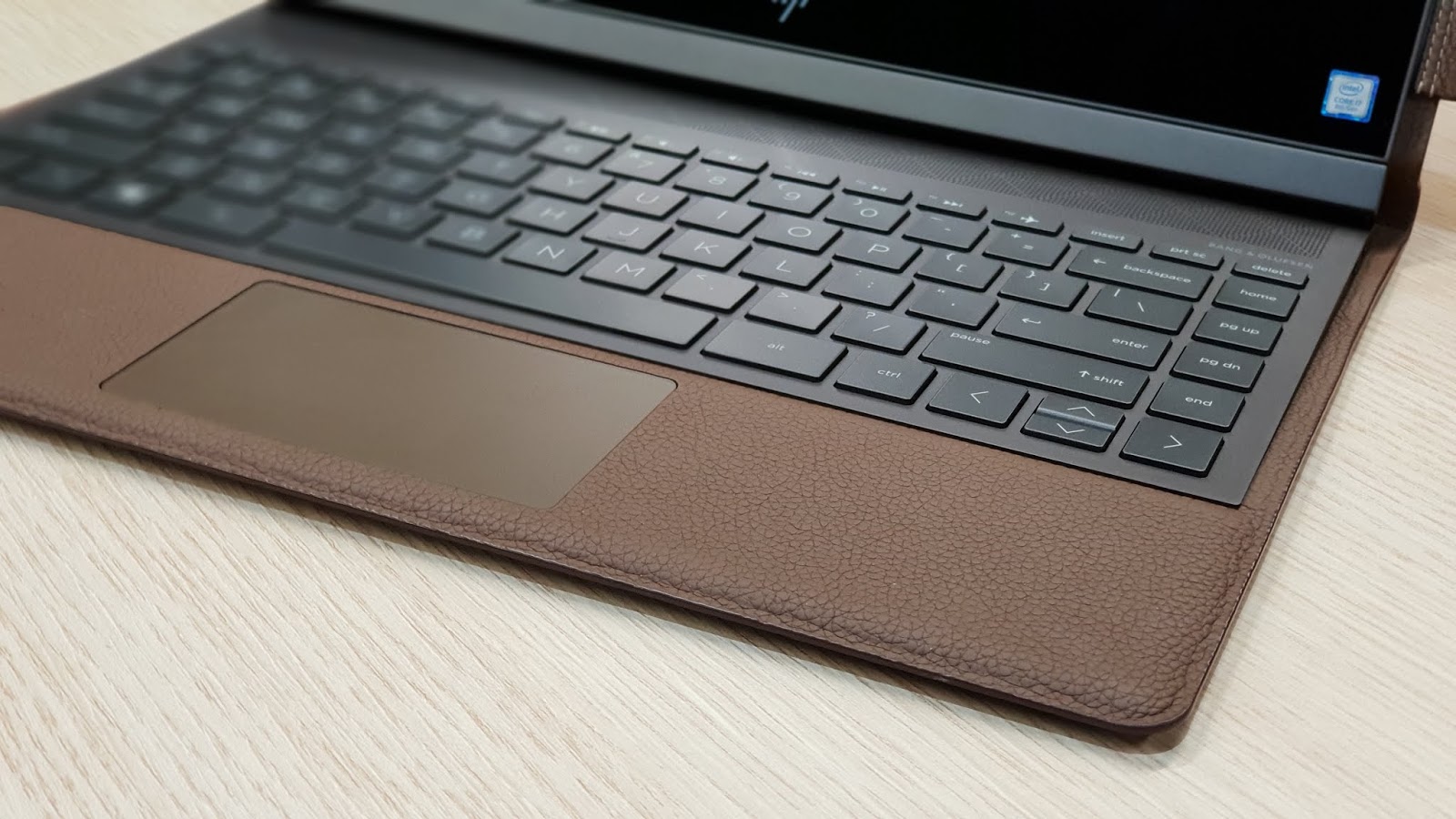
Straight out of the blocks, (and the box for that matter) the HP Spectre Folio 13 makes a statement. If you're looking to show everyone at the meeting you're only interested in high-end, pulling the Spectre Folio out of your briefcase will achieve that instantly.
Nothing looks, smells or feels like leather and the Spectre Folio has leather everywhere. I want to make this quite clear, this is not just a laptop in a leather case - the body is all leather, both outside and when you open the Spectre Folio up. I'm sure if HP could have found a way to make the screen out of leather, they would have.
There's a lot of leather.
Now that I say that... I wonder what a vegan would make of this device?
The point is, like a beautiful handbag or a quality watch strap, you can't deny the instant impression the Spectre Folio makes, in either Cognac Brown or Bordeaux Burgundy.
But of course, leather isn't just about good looks - there are some genuine, practical advantages. For starters, leather can take a knock or two. It's relatively hard to buff or scratch - but if you do, like a well worn wallet, it actually ends up looking better. Also, because leather is thick and soft, it probably has a certain natural shock-absorbing quality to help protect the screen and other precious internals.
Perhaps most significantly, leather is a hell of a lot better at sopping up the disgusting hand oils that usually leave shiny, slippery patches under your palms on most laptops. With the Spectre Folio, not only are the areas your hands rest upon more comfortable, they're far less likely to feel moist and gross.
Of course, this device is not just a laptop. Strong magnets lock the Spectre Folio securely into each of its three profiles; laptop, tent-presentation mode ("Media Presentation Position" - ideal for watching video content) and tablet mode. It feels solid as a rock in each configuration - perhaps even more so than any other transformable device I've used - even Microsoft's own Surface devices which seem somehow flimsy by comparison.
Yet the Spectre Folio is still surprisingly light - under 1.5kg, definitely easy enough to carry around in a pack, briefcase or handbag. The battery life is also right up there with the best tablets and laptops. There are all sorts of claims on the HP website about how long the battery might last in certain circumstances, but in real-life use, you should probably get at least ten hours which makes it a genuinely portable computing option, certainly capable of lasting through a day of work or study.
The 13.3" FullHD touch screen is wonderfully clear, although I've found it to be slightly too reflective in bright conditions. Great for watching movies and TV though - just that much bigger than the 8-10" displays commonly found on other tablets. I personally prefer its 16:9 aspect too, again far more natural for wide-screen media.
Sound-wise, the Bang & Olufsen tuned speakers do a pretty good job - certainly very clear and precise. However, there's a lot of top and not much bass or power, so if you are watching some kind of sound-effect heavy blockbuster, you're probably better off pairing up (or plugging in) some decent headphones to do the fantastic picture quality justice. The speaker array is situated at the top of the keyboard, so I was worried it might become muffled in "Media Presentation Mode," when the keyboard is covered up - but in fact the opposite was true; instead the sound was reflected forward by the tent-like configuration and the quality was actually improved.

The keyboard is itself a highlight - due to the larger, wider screen, there's a lot more space for the keys than there is on your standard tablet keyboard case. That doesn't just mean a bigger keyboard, it also allows for more space between the keys, vastly reducing the chance of mistyping. Obviously the keys themselves remain pretty flat, but I still found there was enough travel there to create a satisfying click with each press.
Whether you're using the Spectre Folio as a laptop or a tablet, don't expect much from the camera - I was surprised to discover just one front facing camera and nothing on the back at all. While it's not unusual for built-in cameras on devices like these to be awful, I would have liked a bit more contrast and clarity for my Skype calls. There's also a slight delay when recording video which is a tad disconcerting, although the videos themselves end up being smooth and clear.
Perhaps the only underwhelming aspect of the Spectre Folio is the actual nuts and bolts performance. Oh, it's not bad by any means - an 8th generation Intel Core processor combined with 8GB of RAM is certainly plenty of grunt for the vast majority of business and personal users. It connects quickly and easily with other devices like screens and speakers. Streaming, browsing and presenting all happens smoothly and reliably. Where things start to go a little sideways is around graphics resources. I tried a few rounds of Apex Legends, a first-person shooter my 15 year-old is currently obsessed with. While it downloaded and installed quickly and efficiently, the high demands placed on the integrated graphics chip led to an inconsistent result. Sometimes the game would load, sometimes not - sometime it loaded but all I saw was a blank screen. I tried to reduce the graphics quality in the game settings and it crashed completely. I'm thinking the Spectre Folio might not be first choice for serious gamers.
Something I really love about the Spectre Folio is the stylus, or "Tilt Pen." It pairs almost instantly, charges with the same charger the Folio does (or any USB Type-C charger for that matter) and does a beautiful job sketching, writing and highlighting. But what I like most about the Tilt Pen is... it comes in the box. These days there are too many devices designed to be used with a host of accessories, but you have to pay extra for those accessories. There's a leather (of course it's leather) holder for the stylus on the right-hand side of the device, so it makes perfect sense for HP to throw it in.
Another useful accessory to be found in the box is a standard USB-to-USB Type-C adapter. This is a must have because while the Spectre Folio sports a generous 3 USB ports, they're all Type-C, which can be a bit limiting when connecting some peripherals. Unusually, other than a headphone jack, that's all there is in terms of physical connectivity - no card reader, no external display port. I don't see this as a major when things like that can be plugged in or connected wirelessly. I'd rather sacrifice a few unnecessary slots and ports in favour of this device's unbelievably slim profile.
Of course, when you're paying around three grand or more for a computer, you'd probably expect a few extras like the stylus and USB adapter thrown in, but it isn't always the case with other products from other manufacturers. Compared to what else is out there, I think the Spectre Folio represents pretty fair value for money. It's a solid performer with noteworthy battery life. Its three easily transformable profiles are all useful and solid and most importantly, there's the leather. Who could forget about the leather? How often does tech get as tactile as this?
Click here for more information on the HP Spectre Folio 13.
We've been using an Epson EcoTank printer since July 2015.
In that time, I've had to buy one bottle of black ink. One.
The colour tanks are still going strong. So how do you improve on that?...
Well, to start with, you make the ink tanks easier than ever to fill.
It was with a certain nervousness I started setting up the Epson Expression ET-3700, only because when you're dealing with something as permanent as printer ink, you can count on me to get it exactly where I don't want it to go. On my previous Epson, while I never really spilled anything, I did manage to get ink on my fingers - and nobody wants that.
The new EcoTanks on the ET-3700 make even my chronic clumsiness a virtual non-risk. Not only do the new ink bottles have spill-proof nozzles that allow you to connect to each tank and empty just the right amount of ink without squeezing, but each bottle can only be fitted to the corresponding tank - eliminating the risk of filling the wrong tank with the wrong colour - which would obviously be a complete disaster.
Epson claims to include "two years' worth of ink" in the box with the printer. This is pretty meaningless of course, because if you print 24 hours a day seven days a week, chances are it won't last very long at all.
But if my household is anything close to typical, (don't laugh, it could be) as I've already told you, my previous Epson exceeded the the two year claim easily, so I have no reason to believe the ET-3700 will be any different.
I filled all four tanks quickly and without spilling even a tiny drop. The older generation of EcoTanks were a lot more clumsy - attached to the side of the printer, you had to flip them out to fill them and the whole operation required quite a bit of extra desk space. The tanks on the ET-3700 are completely incorporated into the printer itself and much more easily accessible - just a matter of flipping open the cover on top.
So filling up is easy. Then, after switching the printer on, I was surprised to find I had to wait. There's quite a drawn-out charging process which takes up to ten minutes before the ET-3700 is ready to go, first time out. This is followed by a series of calibration trial printouts during which the printer asks you questions about what it's printing to make sure the print heads are doing what they're supposed to. This happens via the 2.4" colour LCD screen of course - it doesn't actually ask you. The screen is very clear and much more user-friendly than the previous generation... so good in fact I keep forgetting it's not a touch screen. Instead it's operated by a simple set of navigation buttons on the control panel which swivels up and down to the angle you prefer.
Remember, this is a printer for domestic use, so often you'll be printing to it from different devices around the house; PC's, laptops, tablets - even phones. That means connecting the ET-3700 to your WiFi needs to be straight-forward and reliable. It is. In fact, I was able to do all that from the printer itself, without having to enter the settings from another device like my desktop PC.
In saying that, there is an installation disk in the box which includes any drivers you'll need if you're having trouble printing - but you won't, or at least, I didn't.
I was able to print and scan straight away, my Windows 10 PC having no trouble communicating with the ET-3700 whatsoever.
I could list off the various page-per-minute numbers for you, but that's why Epson has a website. Practically, what I'm happy to report is a noticeable bump in speed - not just in printing but scanning too. More often than not, by the time I got up and arrived at the printer, whatever I'd printed was already done.
There's no Automatic Document Feeder (ADF) on this model, so you can't scan multiple pages at once. To be honest, that's a feature I'm more than happy to sacrifice in exchange for its small form-factor. The built-in paper cartridge (which is fairly high capacity at 150 pages) helps keep things compact too and as I've mentioned, the EcoTanks are now built-in as well so everything's very tidy indeed.
What I do miss though is any kind of card reader, which means there's no option to print directly from external storage. Ah well, I can't have it all I suppose.
What you can have is excellent printing and a heck of a lot of it. If I'm going to be ultra critical, I might suggest the colours err a little on the dull side - and by that, of course I mean, pictures tend to look... realistic. I can't fault how sharp and clear the print quality is - or the scan quality for that matter.
But most importantly, you simply can't escape the sheer economy of Epson's EcoTank printing system. Each bottle of coloured ink retails for just $17.99, with the much larger black bottle only $34.99. Remember, I've owned an earlier model for three years and I've only ever had to buy one bottle of black ink. Compare that with my mother who uses an entry-level printer from another manufacturer. She seems to spend around $40 on a new cartridge every couple of months. The expense and hassle simply don't add up - especially when there's absolutely no compromise on quality.
The ET-3700 is not the cheapest printer around, but deep down, you know those under $100 models are a con that will leave you cursing every time they demand to be fed another cartridge.
If you can, I really recommend you make the long-term investment.
Click here for more information and pricing on the Epson Expression ET-3700.
Last year Microsoft blurred the lines between laptop and tablet so much it now really makes no difference - the Surface has evolved into a device so powerful and functional it's just a question of which form factor you prefer.
So if you favour a tablet with detachable keyboard, what does the latest offering bring to the table?...
Incorporating the latest i5 or i7 Intel processor, 8GB or 16GB of RAM and anywhere from 128GB to 1TB of storage, there can now be no doubt the Microsoft Surface is an extremely powerful computing tool with very few design compromises for the sake of extreme portability.
The only physical features the Surface Pro 6 really gives up (other than a full-sized keyboard with dedicated number pad, obviously) is all the ports. Oh, there are still enough; a mini display port, headphone jack, microSD slot... but somewhat controversially, there's a single full-size USB 3.0 slot, rather than a smaller, faster USB Type-C slot you'll find on most other new-release compact tablets and laptops. I suppose it is strange for Microsoft's very latest not to offer the latest connection option, but personally, if I had to choose between the two, I'd take a full-sized USB slot any day. Sure transfer speeds might be a little slower, which may be an issue if you're regularly swapping large files between devices, but just about everything I want to plug into a computer still connects via a full-sized plug.
For me, the big question mark hanging over Surface devices of the past has been battery life - head to head with an iPad, they've never come close to competing. My feeling with the Surface Pro 6 is Microsoft has made some big strides in battery tech. The website claims up to 13.5 hours of continuous local video playback - sounds impressive but presumably that's with features like bluetooth and WiFi disabled. Despite that, I've definitely noticed a marked improvement in battery life. I've been especially impressed with the lack of drain when I simply close the cover - which puts the device to sleep rather than shutting it down completely. Previously I've been disappointed to find devices like this to be almost flat when I open them the next day. Not the case anymore.
The photos taken from both forward and rear-facing cameras are extraordinarily, disturbingly clear - but only if the light is good and you don't use the zoom. The zoom seems to be all digital and things get very noisy very quickly. I also found it pretty hit and miss with lighting conditions, many photos would let in far too much, over-exposing the shot, sometimes just as I was taking a photo I thought I had looking pretty good. In saying all that, the cameras on the Surface Pro 6 are some of the best I've used on any laptop or tablet - which isn't saying much because they're usually so terrible.
Facial recognition via Windows Hello face sign-in worked better on this device than any other Windows machine I've ever used. Previously the angle and lighting had to be just right in order to log in just by looking at the screen - now the experience is almost as reliable as the face-unlock most high-end phones offer, although still not as fast. It's great Microsoft are getting this right as I truly hate typing in endless passwords.
There are a few things that have me confused though.
Why are the bezels around the screen so wide? These days it's pretty unusual for a device to not have something approaching edge-to-edge display.
The Surface Pro 6 doesn't come anywhere near it - in fact I thought I had something set up wrong in the display settings because the screen seemed to be cut off so abruptly, especially at the sides. Not that there's anything wrong with the screen size; 12.3" is heaps. Perhaps it's the 3:2 aspect ratio that weirds me out so much - I definitely prefer the wider 16:9 for movie/TV viewing.
Which is a shame because the screen quality is truly excellent - fantastic blacks and much less reflective glare than on previous models. The other thing that adds to a pleasurable viewing experience is the forward-facing stereo speaker array - I was truly impressed by the clarity and stereo response from these small but powerful speakers.
What still irks me most about the Surface Pro is the price. The 128GB version with 8GB of RAM starts at $1549, which isn't too bad except for two major factors; 1) You can pick up a more conventional laptop with similar specs for much less and 2) that price doesn't include the Type Cover. This drives me crazy. Yes, the Type Cover is amazing. The keys are responsive, the track pad is intuitive and user friendly and the soft, felt-like material is very comfortable to use for long periods. But it's not worth another $239.95. And there's no point buying a Surface without it. That means almost $1800 for a device with less storage than many new release smart phones.
Don't get me wrong, the Surface Pro 6 is great. I just can't afford one.
Click here for more information and pricing on the Microsoft Surface Pro 6.