As I always do at the beginning of any camera review, I'm obliged to point out I know nothing about photography. I do know quite a bit about phones though and these days some cameras on some phones are pretty impressive.
So a camera that doesn't have a phone attached to it has got to be good to get my attention.
The Fujifilm XF10 looks really cool. Or at least, I thought so. Turns out, I don't know what I'm talking about - or at least that's what my 14 year-old in-house photography expert advises me.
While I thought the champagne gold body with matching brown hand-grip gave the XF10 a hipster-ish, retro style, Miss 14 assures me I should have gone with good old black on black. Always a classic. Just as well the XF10 offers both choices.
Charger, lens cap and matching leather wrist-strap are included in the box, but it's not what's included but what's left out that immediately gave me cause for concern.
Most notably, the lens. It's hard to avoid comparing the XF10 with the next model up the line, the X-T100. The most obvious difference between the two is the X-T100 is compatible with Fujifilm's entire range of X-Mount lenses - giving you the option to upgrade and customise as required. The XF10 has just one permanent 24.2MP Fujinon lens. This means extremely limited zoom options - just three jerky steps on still image mode, with no zoom ability for burst shots or movies whatsoever. On the plus side, the lens has a much wider sensor than you'll find on a phone camera, which is supposed to provide greater detail and more light, especially for indoor shots. We'll talk about this more later.
Another obvious omission on the XF10 is the viewfinder - there isn't one so you're limited to what you see on the 3-inch LCD screen - this means holding the camera away from your face which makes you feel a little bit disconnected from what you're shooting.
The screen is a touch screen and while the Fujifilm website claims this means you can, "operate the camera just like a smartphone," you can't. Yes you can pinch and zoom pictures you've already taken, but in terms of accessing options and controls with my fat fingers on such a small display, it's pretty hit and miss. And don't get me started on focus controls... because I'm going to talk about that in it's own paragraph shortly. Also, unlike the tilt and hinge function of the screen on the X-T100, the screen here is fixed so taking selfies is complete guesswork.
Then there are the physical controls themselves. Instead of an up/down/left/right four button configuration, the XF10 has a single little joystick. That sounds like an elegant idea in theory, but in practice it's so very tiny I struggled to operate it, often making the opposite menu choice to the one I wanted because I just couldn't make it work in the right direction. It also took me ages to figure out how to change from still mode to burst shot or movie mode. That's because the same button is the delete button when you're reviewing your shots. Pushing "DELETE" to shoot a video doesn't make much sense to me.
Not that I would choose the XF10 to shoot video. While the images are clear and the colours are good. the frame rate produces a stuttering, stilted result and as I've already mentioned, there's no zoom function.
The other problem is getting the XF10 to focus on the right thing. As I've mentioned, even when pointing to the preferred subject on the touch screen, often the camera would forget it by the time I actually took the shot. I tried a lot of different settings, with various degrees of manual control, but could only nail the focus issue about fifty percent of the time - and the problem is much worse when videoing. The camera doesn't seem to track moving subjects at all, often changing focus to something far less interesting in the foreground.
This all sounds very negative which is a bit misleading because the good shots are really good. The most consistently successful pictures were close-ups. This is where the wide APS-C sized sensor goes to work providing nice blurred background effects for portraits and food shots. I also found Advanced SR Auto mode did a great job of recognising what kind of shot I was taking - night, portrait, macro, moving object - quite clever, but not fast enough. I found I had to anticipate my shots by a second or so in order to capture the image I really wanted - a bit tricky.
I was very satisfied with the detail, sharpness and colour though - colours especially seem very true-to-life, not over saturated or crazy bright. The built-in flash is adequate, but obviously struggles over longer distances and unsurprisingly, there's no capacity to attach an external flash of any kind. Luckily, the lens really is wide enough to let in enough light for reasonable indoor shooting - however, I have used high-end smartphones that do a better job of this.
Here are some examples to illustrate some of the points I've mentioned...
Unfortunately, one thing the XF10 does have in common with some of its higher spec relations is terrible connectivity. Take my advice, don't even bother downloading the app because trying to navigate the camera via bluetooth on your phone is painful and I often found everything simply dropped out altogether. Save yourself the trouble and just stick the memory card straight into your computer.
As I said before, I've certainly used phone cameras that take better photos than the XF10, although probably only at the higher end of the price range. What those phones can never offer is Fujifilm's fantastic range of simulated film settings. These really do set all their cameras apart from the rest.
However, at $800+, the XF10 doesn't come close to delivering what the X-T100 offers at just a few hundred dollars more. What's more, these days there are several smartphones around this price with pretty damn good cameras... and you get a phone.
Save yourself some frustration and pay a bit more for the X-T100. Now that's a great camera.
Click here for more information on the Fujifilm XF10
How much is great WiFi worth to you?
Have you ever missed the final over because your stream cut out?
Has the music ever stopped mid-party - just when everyone was up dancing?
Has your teenager ever told you the internet in your house sucks? Incessantly. Like, 450 times every day?
D-Link has a simple, effective solution. But it doesn't come cheap.
The COVR-2202 "Seamless" WiFi system from D-Link is one of the new breed of mesh configurations currently taking over from where the old "add an extender" situations came up short.
Extenders come in all shapes, sizes and capabilities of course - but if you think plugging in something that looks like a night light will get your Netflix working down the other end of the house, you're probably going to be disappointed.
Those wall-plug extenders generally offer limited connection speeds and almost no bandwidth in terms of managing multiple devices at once. What's more, you have to give the extender it's own network name (SSID). This generally leads to frustrating dropouts if you're using the same device in different parts of the house.
What's more, if you're trying to stream to a Chromecast or screen-share with a smart TV, you need to be on the same network - often this will mean having to manually open your WiFi settings on your phone or tablet to switch from your extender back to your router or vice versa.
The mesh system is a vast improvement because it allows multiple WiFi access points all using the same network, so no more cumbersome switching. However, like routers, not all mesh systems are created equal.
What gives the D-Link COVR-2202 a big advantage over many of its competitors (and even it's lower powered relative, the COVR-C1203) is its extra 5GHz band reserved for Smart Backhaul communication between the primary COVR unit and any satellite units. This tri-band configuration combines with D-Link's Smart Steering technology to give every connected device as much bandwidth and speed possible, with very little chance of overlap or interference.
What really sets the COVR-2202 apart is the sheer power of these units. Although you'll need slightly taller shelf space to accommodate the more tower-shaped profile of the devices, it's well worth it because underneath those subtle, attractive covers nestle an impressive six antennae. D-Link claims this kind of power will easily cover up to 560 square metres, which is way bigger than my house - in fact, it's a fair chunk of my whole section.
I've tested it pretty extensively and it lives up to those claims. I set up the two pre-paired COVR-2202 units in diagonally opposite corners of my two-storey house and not only did the connection between them remain rock solid, the internet speeds stayed right up there as well - more than enough for HD streaming or gaming or both, even when connected at the satellite end of things.
In the past, I've found setting up devices like these a confusing trial-and-error process. Swapping between app and browser-based interfaces to get everything connected. D-Link has definitely ironed out all those kinks these days and the latest iteration of the D-Link setup app prompts you with easy-to-follow, step-by-step instructions that are foolproof - even for someone as foolish as me.
To be honest, there weren't really very many steps at all, as there was no pairing required between the primary and secondary units - that's taken care of straight out of the box. It was literally just a matter of plugging the main unit into the modem, firing it up and giving your network a name and password.
The LED COVR logo on each unit doubles as a status light, red bad, white good, flashing somewhere in between. Once you've got everything up and humming, the light can easily be turned off via the app.
There's real versatility here too, because each unit has two ethernet ports. This means you can use your new mesh network almost like a WiFi bridge - connecting both your smart TV and a set-top box. Or a PC and a gaming console.
In fact, go crazy - there's plenty of bandwidth to spare.
Speed, power, stability - all packed into two subtle but attractively designed units.
At $549.99, I think the COVR-2202 is a bit expensive - I mean, you could buy ten of those plug-in extenders for that price. Except...
I have to admit, the COVR-2202 works at least ten times better than those little extenders and it's probably slightly easier to set up.
So put a dollar amount on it; your WiFi frustration, how much is it worth to you to kiss it goodbye? Then maybe next time your teen emerges from their room to complain Fortnite won't load, you could suggest they chip in...
Click here for more information and pricing on the D-Link COVR 2202 mesh WiFi system
Remember when home theatre was a thing?
For somewhere between $500 and $2000, you could get a half decent sound system in a box; a head unit, three front speakers, two rear speakers and a subwoofer.
If your system was really flash, your rear speakers might even have been wireless... that is to say, they'd connect to the amp wirelessly - you'd still have to plug them in for power of course.
I once got very carried away and mounted my rear speakers on the ceiling, drilling holes and running cables down through the walls. Big job - but man it sounded good. Shame we moved really.
Then something happened. The TVs got bigger and flatter and slimmer. People stopped watching DVDs and listening to CDs, so you no longer required a head unit you could insert a disc into.
Enter the soundbar.
Because, let's be honest, no matter how flash your telly is, the built-in speakers always... well... suck.
JBL happens to make a very nice soundbar. And then they had an even better idea...
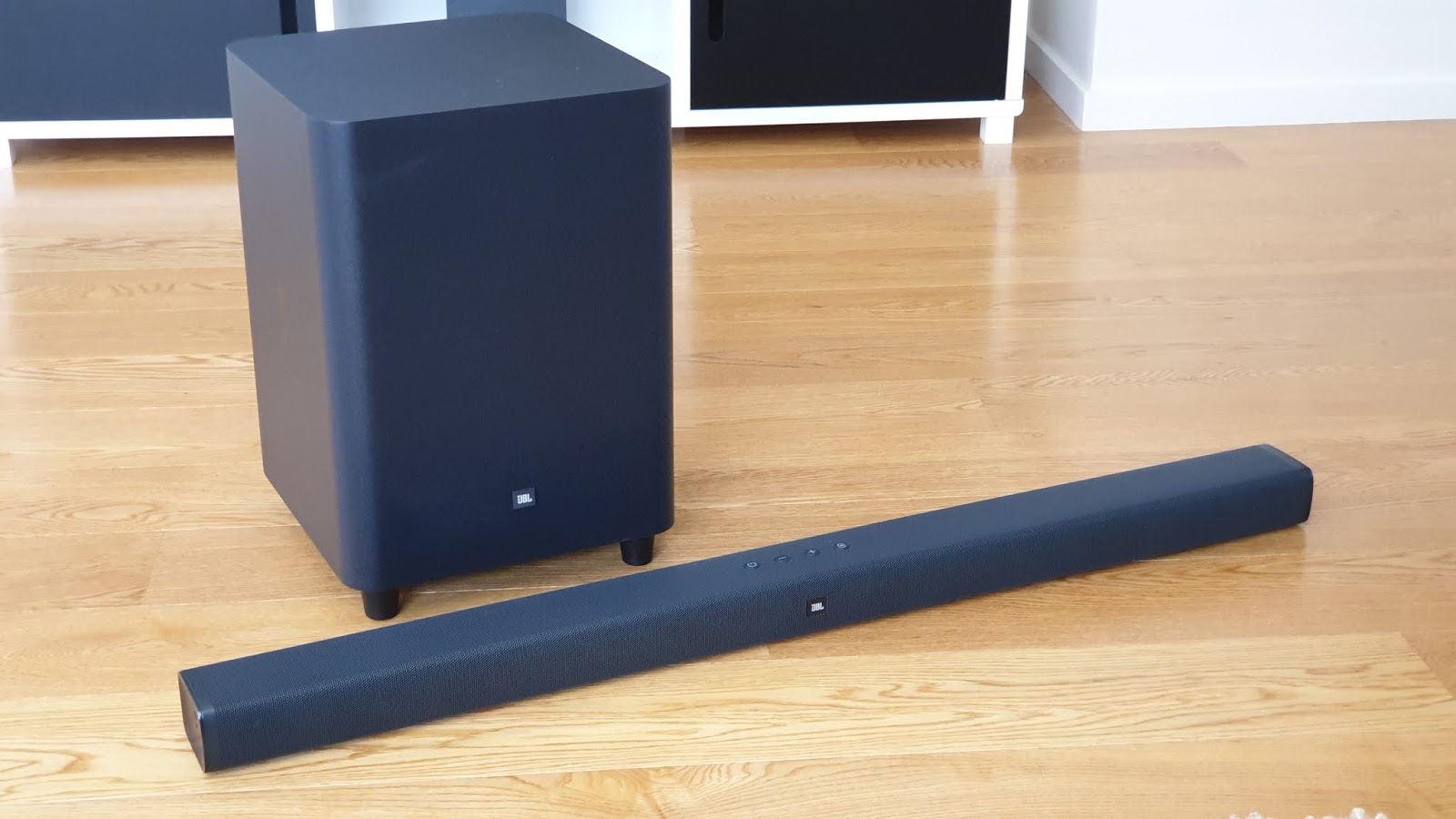
While the JBL Bar 3.1 is technically 4 separate speakers, it is of course, only two bits. the bar itself and the subwoofer, which is pre-paired via bluetooth and also huge. A big part of what I love about this system is there's nothing flashy or gaudy about it - just a tiny JBL badge in the centre of each speaker and a few subtle buttons you'll probably never use.
That's because setup is all done for you. Simply plug in, turn on and you're good to go.
The main issue with TV-only speakers is obviously a lack of bass punch. This is just stupid, given how much video content relies on big bass for impact - explosions, crashes, rumbles, basically if it's a cool special effect, it requires the womp womp of a decent subwoofer. That's before you even get to the fact you may be using this sound system as your main music machine too.
Well, as I've already mentioned, the subwoofer half of the JBL Bar 3.1 is significant. 10 inches significant. It's big and solid and wooden and has way more grunt than you're likely to require. The best thing is, you can easily control the bass with dedicated plus and minus buttons on the remote.
The soundbar itself does an excellent job of separating out voice from music and other sounds, pumping dialogue through the centre speaker and pushing the stereo stuff to either side. While there are preset EQs for MUSIC, MOVIES, VOICE etc, I found MOVIE mode to be the most versatile and usually left it on that.
While the dialogue separation trick worked well, the stereo stuff not so much. This is probably due to the reasonably large room I'm watching my telly in. I'm physically just too far away from left and right speakers that are only a centre speaker apart for any genuine stereo effect to happen.
Other than that, overall sound quality is pretty stunning. If I had to use just one adjective, I'd go with clarity. Unfortunately, that top end clarity combined with the aforementioned womping bass did sometimes leave me feeling like the mid-frequencies were being left out of the equation just a little - but I'm being massively picky.
While the JBL Bar 3.1 sounds awesome, it still doesn't really offer any genuine surround solutions, unless, like me, you like to put the subwoofer right next to where you're sitting. Then at least you can feel the bass vibrating through the sofa.
If you want more, that's where JBL's cleverest trick of all comes in. Meet the Bar 5.1...
Did you spot the difference?
How about now?...
The Bar 5.1 comes to pieces. On purpose. In one of those, "That's so simple, why didn't I think of it?" pieces of innovation, the rear surround sound speakers detach from the soundbar for your viewing (and listening) pleasure. Then you simply plug them back in to recharge.
Come on, how genius is that? At last, genuinely wireless rear speakers you can literally place anywhere. I've been waiting for this a long time. Best of all, it works brilliantly. Like the subwoofer, the detachable speakers are pre-paired so there's no complicated setup involved. Also, like the subwoofer, the remote has dedicated surround speaker controls so you can easily alter the balance. I found the surround effects very convincing, but the major spin-off to having separate speakers like these is they aid in keeping left and right apart. Stereo is back, baby.
The cleverness doesn't stop there. The wireless speakers turn themselves off when not in use to preserve battery life. You'll get about ten hours-worth on a full charge. Then it's just a matter of pressing the reconnect button on each speaker once you fire things up again.
If you'd prefer not keep disconnecting and reconnecting the rear speakers to the main bar (which is not tricky at all, they just slot in magnetically) you can choose to mount them permanently, but you'll need to connect a microUSB charger to each unit.
In the few weeks I've been using the JBL Bar 5.1, I've experienced a couple of rare dropouts with the rear speakers, but this was easily remedied by turning them off and reconnecting. Hardly a major.
My only real criticism is purely cosmetic.
While the magnetic connection that holds the detachable speakers on is really strong, if the soundbar is wall mounted, they still droop ever so slightly, creating a subtle, but noticeable frown effect instead of a nice, straight, horizontal line. It's a tiny design flaw, but given the overall cunning of the whole concept, it's a shame JBL didn't notice.
If the soundbar is on a tabletop or self, this isn't issue at all so don't even worry about it.
Both the 3.1 and 5.1 bars have an amazing number of HDMI inputs, five in total including an HDCP slot and the ARC slot which let's you control the soundbar from your TV remote. You can also connect via bluetooth, optical or standard 3.5mm cable - but seriously, why would you?
There is a subtle white LED display to let you know when the soundbar is on, off, charging speakers, connected to bluetooth and other sources, that sort of thing. It can be dimmed right down (again, an easily accessible dedicated button on the remote) and disappears completely when not required. I love all that because the last thing you need is something lighting up and distracting you from the TV itself.
Another thing I like, as you may have guessed by now, is the remote itself. It's light and as I've pointed out many times, has actual, physical, dedicated buttons for all the functions, even including audio sync, allowing you to adjust any minute delay between what you're seeing and what you're hearing.
$800 might seem a lot to pay for a soundbar and I agree. Even though the JBL Bar 3.1 includes an ENORMOUS subwoofer, there are other options out there that do a similar job for less dollars.
However...
I don't think $1200 is too much to spend for a quality surround sound home theatre, which is what the JBL Bar 5.1 definitely is. So get that one. It's just so clever.
Click here for more information on the JBL Bar 3.1
Click here for more information on the JBL Bar 5.1
There's been an explosion of WiFi-capable camera technology onto the market lately.
D.I.Y. home security on a budget - but it's one thing putting up a few cameras. If you can't easily access what they're filming, or even worse, if it's not good quality video, the exercise becomes a bit pointless.
D-Link has had some pretty clever cams on offer for a while now, but setting them up so you can actually watch them hasn't always been a painless experience.
Now that pain is over...
There's no doubt the DCS-8300LH and DCS-8525LH from D-Link are top notch surveillance cameras in their own right, both extremely versatile and full-featured.
Both cameras record day or night, even in complete darkness. Both capture extremely clear, 1080p full HD video and both are capable of two way audio communication.
While the 8300 is ultra compact, it still offers an incredible 137 degree viewing angle - more than enough to cover most open spaces. Meanwhile, at 117 degrees the 8525 has a slightly more narrow field of vision but instead offers complete pan and tilt ability, meaning it can follow the action anywhere around it.
Both cameras can be positioned on a shelf, wall or flipped upside-down and mounted on the ceiling. All the brackets and attachments required for any of these configurations are included in the boxes.
The only real limitation in terms of positioning either of these cameras is the cable on the power adapters - it's long, but not super long so you'll need to be fairly near a power point or know someone who's good at splicing extra length onto power cables.
Both cameras have strong WiFi connectivity, but if you're more inclined to trust a hard-wired connection, the 8525 still offers the option of an ethernet port - obviously that'll limit your location flexibility though.
What really makes these cameras so easy to use is the latest version of the mydlink app. Until recently, I've usually been frustrated by the D-Link setup and monitoring apps. I found them quite clunky, confusing and unreliable - often resorting to a browser-based interface on my laptop instead.
Well the latest version of mydlink is excellent. Setup couldn't have been easier and I had both cameras up and running in under 10 minutes. The app allows you to access any D-Link cameras, motion sensors or smart switches, wherever you've set them up.
Swapping between each device is a breeze - you can monitor them live or take advantage of any number of fully customisable pre-set profiles. This means you can schedule recordings to happen at certain times, or simply when the cameras are triggered by either motions or sounds.
You can also decide when to receive notifications of movements or sounds.
The great thing about the app is you can go straight to the "One-Touch" menu which lets you trigger off your desired profile with, you guessed it, a single touch.
I really found both these cameras to be extremely versatile - the LED infrared images taken in total darkness have to be seen to be believed. However, I did discover one limitation - be careful if you're intending to point these cameras out the window at night. If so, best to do it at an angle, because if the camera's staring straight at the glass, as soon as those LED's fire up, you'll get nothing but a reflection of the camera looking back at you!
D-Link now offers cloud storage, or you can record to microSD card in the cameras themselves. You'll even get a notification if the cameras are disconnected for any reason - not that there's much you can do about that from off-site, but at least you can check the recordings on the cloud up to that point to see if anything suspicious was going on.
At $279.99 for the ultra-slim 8300, or just $20 more for the pan and tilt versatility of the 8525, combined with an extremely easy-to-use app, these cameras really are the ideal, user-friendly home or small business surveillance solution.
Click here for more information and pricing on the D-Link DCS-8300LH WiFi camera
Click here for more information and pricing on the D-Link DCS-8525LH Pan & Tilt WiFi camera
Cards on the table... I am a Windows guy.
I've always preferred P.C. over Apple.
I'm a Microsoft man.
The reason, as I've often explained, is I have to be able to set things up the way I want - not the way the device says I have to.
Unfortunately, Microsoft hasn't always got it right. As an early adopter, I've fallen into the trap of updating to devices and operating systems that aren't quite ready.
Windows Vista, for example. In some ways, a massive leap forward for Microsoft, but mostly an operating system that just constantly annoyed everyone who used it with its incessant notifications and permission requests.
The first Microsoft Surfaces were a bit the same; a great idea in theory - a tablet that works like a laptop. But in order to fit the form factor, a lot of compromises were made under the hood that left the first few generations underpowered, underfeatured and users somewhat underwhelmed.
The Surface Pro changed all that. This was the real deal, a fully functioning Windows experience, but packed into the slim, lightweight and uber-portable Surface profile.
Now Microsoft really brings Surface to the masses...
The Surface Go is Microsoft's big play to win back the battle for the schools.
The Go is the slimmest, lightest, most compact of the Surface range to date, making it a genuine contender for the "D" if you kid has been told to BYOD.
My kids attend Orewa College, one of the country's first BYOD schools and while it was always supposed to be any device you like, in reality, life was more complicated for you if you weren't using an iPad or a MacBook. Sounds like a few years down the track, the teaching staff have adapted the curriculum to be more accepting of Windows and Android devices and Microsoft are working hard (especially here in New Zealand) to provide holistic I.T. solutions to help schools step forward into a more "connected" learning environment.
So the platform is nearly ready - now we need the device. The Surface Go could well be it.
Although the 10" PixelSense display is smaller than what we've seen on the Surface Go, it doesn't seem cramped at all. It's very clear and is able to be run at a high brightness level, although that will obviously affect battery life.
Battery life has been one of Microsoft's biggest challenges when it comes to taking on the iPad's all-day performance. Full-sized laptops have always struggled to go more than a few hours and even the last few generations of the Surface haven't fared much better.
The Surface Go promises a big improvement in this department... although I'm not completely convinced it delivers. On the 128GB 8GBRAM device (the same variant I'm writing this review on) Microsoft claims to have achieved up to 9 hours of continuous video playback. I'm highly sceptical about this, although I haven't performed the same kind of test myself. All I can really go on is the battery indicator, which of course, is no use at all.
How hard is it for Microsoft to tell me how much battery is remaining? One minute 50% percent means 1hr38min, the next minute 49% means 3hr02min. This does not inspire confidence, especially if I'm a student using this device for my afternoon classes.
In saying all that, I know I have used the Surface Go for several hours between charges. Just not nine.
The design is familiar if you've used a recent iteration of the Microsoft surface, with the same magnetic charging dongle that conveniently plugs itself in either way round. Unfortunately, the Surface Go has lost its full-sized USB port in exchange for a singe USB Type-C port. While very modern and compact, it certainly isn't as versatile when it comes to plugging in storage drives or other peripherals like mice or keyboards.
I suppose the idea is, you're meant to do everything wirelessly via bluetooth or NFC - a good theory, but this is where Microsoft gets itself into trouble. In reality, accessories that physically plug in still tend to be faster and more reliable.
So I just connected a USB hub and plugged everything into that instead.
Like its predecessors, the whole point of the Surface Go is to pair it with a matching keyboard case. I'd go a step further and suggest it's completely pointless without it. Yes, you have the option of using the Surface Go in either tablet or desktop mode, but I can assure you I wouldn't be able to write this using the on-screen keyboard because it keeps covering up my text and I can't see what I'm typing. Not that I care, because the Surface Type Cover is one of the most ingenious things ever invented.
I especially love the way it magnetises itself into place. I don't know why, it just feels cool. Because the Surface Go is smaller, so is the keyboard and I'm not going to lie, it does feel a bit cramped at first. Like anything though, once you've used it for a few hours you get used to it and it stops being an issue.
The speakers are bright and clear, without pumping out the sounds at any massive volume. Good stereo separation though, which made watching Netflix and other video streaming very pleasurable.
Connectivity is great - stable and versatile. WiFi, bluetooth, NFC... thanks to the latest Windows 10 operating system, I found it extremely easy to project both from the Surface Go to other screens as well as to it from my phone etc...
What can you say about the cameras on a tablet? I've never been blown away by the photos taken on a device like this and the Surface Go isn't about to change my mind. At least there are both forward and rear facing cameras and they do a solid enough job. Images are sharp, there's an HDR function and the facial recognition works fairly quickly in most lighting conditions. Recently Microsoft has developed some pretty user-friendly 3D editing tools and it's fun to combine these with the cameras to create your own Augmented Reality. Conjuring up videos featuring you playing with a bunch of stuff that isn't actually there is now pretty easy and the Surface Go seems to have the processing power to handle it.
What has impressed me most is the genuine P.C.-like performance of this device. For the first time in my experience with a Microsoft Surface, everything works - smoothly and quickly. Even audio editing with Adobe Audition went without a hitch. Admittedly, I'm using the more turbo-charged model; 8GB of RAM with 128GB SSD... although it's the same processor in the lower-priced model, just half the RAM and only 64GB of eMMc storage.
Quite a price difference here - $699 for the lower-spec version, $949 for the one I'm running.
I would have thought $949 is heading towards the upper end of what parents would be prepared to pay for a take-to-school device. And there's a kicker; the type cover is another $220, which seems crazy expensive, as good as it is.
Let's not forget the Surface Pen of course - the multifunctional stylus that's more than a versatile drawing tool, it can convert handwritten notes into text and even launch some apps. That'll be another $159.95 thanks.
Somehow Microsoft needs to find a way to build these accessories into the price and include them with the device itself - especially when they're not being marketed as optional extras, more like essential tools, which is actually what I've found them to be.
If Microsoft can do that, bring down the price of the type cover and the pen, the Surface Go will finally be able to compete with the iPad as the go-to device for schools. It really does have all the functionality of a full-sized, powerful laptop, in a light, slim, super portable package, something the iPad will never be able to deliver.
Click here for more information and pricing for the Microsoft Surface Go
Okay, I'm confused.
In my experience there are three main things you can do to speed up your P.C.
I'm talking physical things. Take the cover off, take parts out and put other parts in things.
1) RAM upgrade - this is the easiest one. RAM modules just slot in and most modern P.C.s make those slots easily accessible.
2) Hard drive upgrade (ROM) - I'll never forget the first time I swapped out my HDD for an SSD. The write speeds on a Solid State Drive are usually hundreds of times faster than a traditional spinning disk. The process is a bit more full-on than swapping out some RAM cards of course, because you need to clone everything on your old drive to your new one. There are plenty of user-friendly programs to help you do this though, so it's not really more technically complicated, just more time-consuming.
3) CPU upgrade - this is a major. You know how doctors don't know how to do brain transplants yet? Swapping out your computer's brain is not going to be easy either. Depending on the configuration of your motherboard, it may not even be possible without replacing the whole motherboard itself. That's basically a whole new computer, not an upgrade.
More RAM used to be my recommended quick fix - easy and effective. But last time I upgraded (from an 8GB configuration to 16GB) I was a little disappointed with the results. Yes the P.C. ran more smoothly, games worked more reliably and I experienced less crashes using resource-heavy video and audio editing programs, but in terms of speed? Hardly any difference. Certainly not the massive acceleration I gained from changing out my HDD for an SSD.
Turns out, maybe I just didn't go big enough...
The new range of Sport AT DDR4 RAM modules from Ballistix is all about power - especially when packaged in the 4X8GB configuration I was lucky enough to review.
That's right, in under 5 minutes I was able to install a whopping 32GB of RAM into my P.C. and it didn't know what had hit it.
Obviously you'll need a compatible motherboard with 4 RAM slots to accommodate an upgrade like this - these modules also run at the higher 1.35 voltage, although there are 1.2V versions available if that's all your existing rig can power. You can easily check for any compatibility issues here.
With the combination of the higher voltage and four RAM cards slotted in so tightly together, I was a bit worried there might be a heat issue but the new heat spreader design seems to sort all that. Those heat spreaders are also cosmetically matched to the latest ASUS TUF Gaming motherboards. I guess that's important for gamers who care about what the inside of their computer looks like. Personally, I just want it to work.
And the Ballistix Sport AT definitely works.
Unlike my last RAM double-up, this time the massive 32GB made an instant and noticeable difference to my boot time - reducing it by over 25%. Between antivirus programs, cloud syncing and auto-updates, boot times seem to be constantly under attack - so to slice more than a minute off mine was a breath of fresh air.
Not only do those resource-heavy games and editing programs now work without a single glitch or crash, they also load so much faster.
Even iTunes (yes, I know it may seem strange to use iTunes on a P.C., but I still find it the most straightforward way to organise my music catalogue)... even iTunes now opens almost instantly. I don't know why, but it's always taken ages to open in the decade-plus I've used it... not anymore.
It's funny how you get used to waiting for functions that should happen straight away. The Ballistix Sport AT means changing users is no longer a waiting game. Ironically, the Windows 10 Mail app has always been slow and buggy on my P.C... now it works the way it should, smoothly and speedily.
Of course, you're probably not going to spend hundreds of dollars on a RAM upgrade like this unless gaming is your thing. That's where the speeds of up to 3000 MT/s really go to work, eliminating lag and providing a solid base for your graphics card to do its thing.
At $400USD, the 32GB Ballistix Sport AT gaming kit is by no means a cheap upgrade, but it is easy and I can assure you it made instant, significant and noticeable gains in terms of speed and power.
Even if, like me, you're simply driven crazy by slow start-up times, a hefty investment in big RAM like this could be a pretty quick way to help you ease some of that frustration.
Click here for more information on Ballistix Sport AT gaming memory
Who doesn't love a meeting?
Be it a brainstorm or an information sharing session, don't we all just love sitting around pretending to find our managers just so incredibly interesting.
It would help if they knew how to work the projector. Or the conference call. Or if the whiteboard markers hadn't all run out.
And what was that third "must do" we all agreed was so important on the action plan? It's completely slipped my mind...
Samsung introduces the Flip, what they describe as a digital flip chart.
Given I'm not even sure what an analogue flip chart is, I've been telling people it's more like a whiteboard and a 55" UHD TV got together and had a baby. A really massive baby.
Make no mistake, this thing is big and it's heavy. Although I managed to assemble most of it single-handed, I did have to get someone to help me lift the 55" screen into place. Which made it all the more frustrating when I discovered it wouldn't fit through the door.

Yep, I had to take it to pieces again to get it into the room where I actually wanted to use it. This is because the feet of the stand splay out quite some distance in all directions to prevent the Flip toppling over and to be fair, the stand is certainly rock steady. Unfortunately, it's literally impossible to manoeuvre it through an ordinary doorway. Not sure what the point of putting it on wheels is if you can't use it in different rooms around the office. Even the wheels need some work. They're basically fairly standard casters with brakes, but they really need to be about twice the size to make wheeling the Flip around a viable option. Over time I've become pretty good at it, steering the Flip a bit like an ocean liner; getting some momentum up then changing the direction well before I need to actually avoid any obstacles.
Although not as mobile as it could be, the Flip is certainly attractive enough, both stand and casing a modern off-white. It comes with two virtual marker pens - a bit like giant styluses. Each can be used for writing/drawing or as a highlighter, depending which end you use. You can erase anything you draw with a swipe of your hand. There's a built-in pen holder attached to the side of the screen which automatically turns it on once the pen is removed.
Like most other stylus-type tools, everything is easily customised; colour, thickness - no matter what's showing on the screen, you can use either or both pens to draw all over it. Once you've highlighted, crossed out and underlined to your heart's content, you can easily save the new document or image.
Unlike other digital presentation displays, the Flip is easily rotated from landscape to portrait - which also turns the screen on automatically. This is obviously why it is called what it is, and it's an important point of difference because when you can connect pretty much any digital device to it, you need the ability to quickly change profiles.
You can screen-share your phone, bluetooth your tablet, HDMI your laptop or just plug in a USB with a bunch of pictures on it. The Flip is NFC enabled so pairing devices is literally a one-touch operation.
The Flip can also connect to office networks via WiFi or LAN, assuming you can persuade your technical department to allow you through the security protocols. Yes, I'm talking to you, NZME Technical.
Once connected, you can print your work, or better still, just email it to everyone, straight from the Flip. Unlike a conventional whiteboard, you can create several pages at once, swap between them, and save or send them all. Best brainstorm ever. If you want your work kept on the device for later, but it's private, you can simply lock it up with a password so the next meeting can't steal your awesome ideas.
It's not just a meeting tool of course - the Flip is a 55" UHD TV you can connect almost any device to. This makes it a powerful presentation aid. I've been using it to provide background graphics for my daily episodes of glennzb TV. I just create a simple PowerPoint with headlines, pictures and video and click through it all with my phone. Talk about high production standards.
Picture quality is excellent in a range of weird office-lighting conditions and while the built-in speakers are nothing to write home about, they're perfectly adequate for most meeting rooms.
The Flip is a pretty damn useful thing - really, there are only a couple of features I'm missing. There's no built-in camera or microphone for inter-office meetings. You can actually get around this by setting up a video chat on the device you've connected to the screen - but that does start to get a bit confusing. Perhaps this is a feature Samsung will include on a future generation.
The other thing missing is a cleaning cloth. Because this is a touch screen, everyone wants to. This means a 55" wall of fingerprints and smudges and it's always a bit of an unknown how you're supposed to keep a high-end display like this grease-free.
Screen hygiene aside, the Flip is extremely user-friendly and intuitive, making it fun to play with and hopefully making the meetings and presentations its being used for more fun too. It's not the cheapest bit of kit for the office, but it feels very robust and durable, giving me confidence you'd get a pretty good lifespan out of it, even in the busiest of businesses.
If only I could get it through the door.
Click here for more detailed information on the Samsung Flip
Click here for New Zealand pricing and availability